
Booking and sales
Booking with Calendly
Send qualified leads your Calendly link and have the booking recorded against the lead automatically when they choose a time, including reschedules and cancellations
2 min readUpdated 26 September 2026
With Calendly, qualified leads are sent your Calendly link and book the time themselves on Calendly. ClientTurn cannot create a Calendly booking on the lead's behalf, so it never tells a lead they are booked until Calendly reports that they are.
Set it up
- Step 1: Open Settings → Connections and find Calendly under Booking.
- Step 2: Choose Connect and sign in to Calendly.
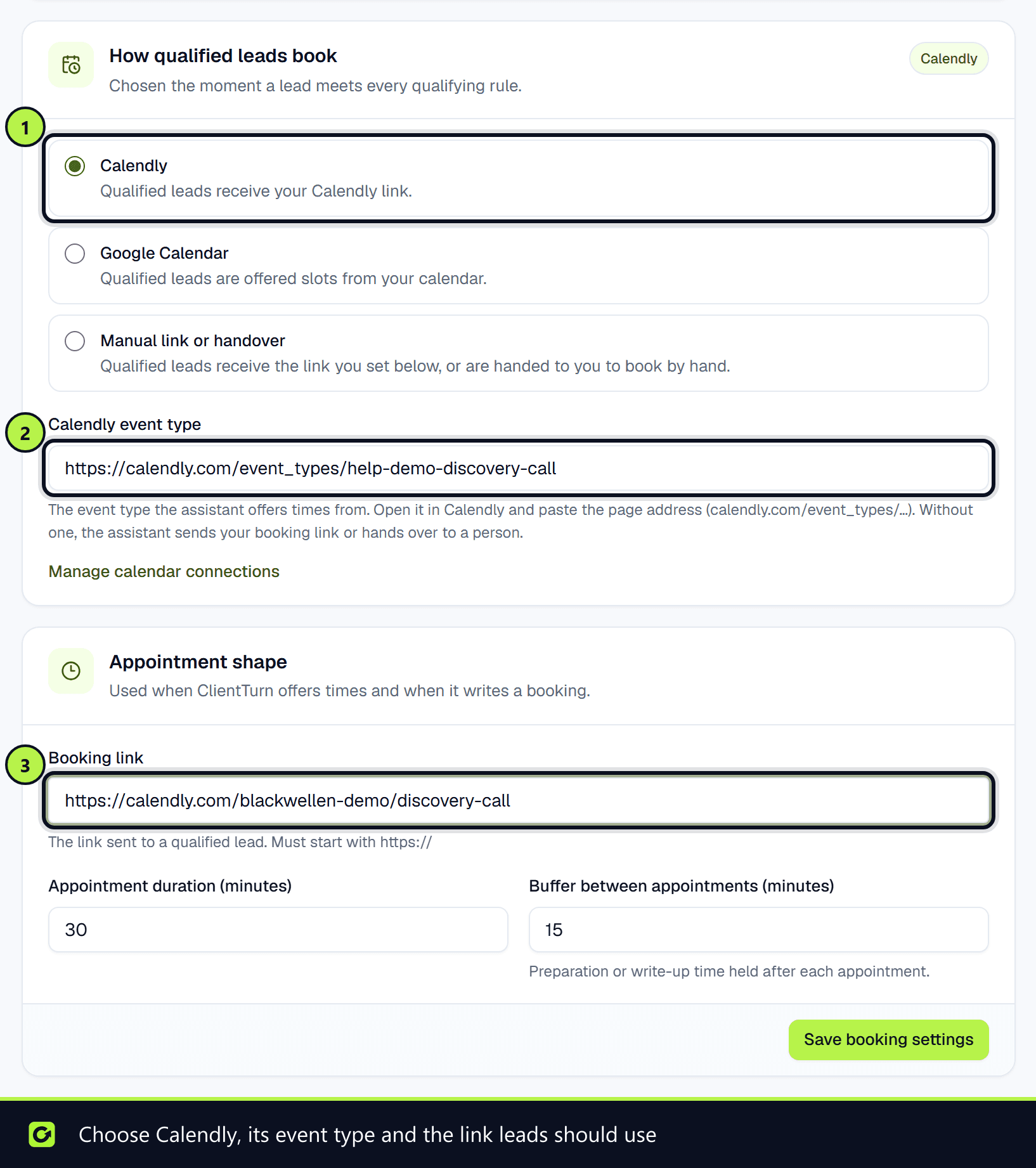
- Step 3: Open Settings → Workspace. Under How qualified leads book, choose Calendly.
- Step 4: In Calendly event type, paste the address of the event type you want leads booked into. Open the event type in Calendly and copy its page address, which looks like
https://calendly.com/event_types/…. The assistant uses it to offer real times from that event type. - Step 5: In Booking link, paste the Calendly link you want leads to use. It must start with
https://. - Step 6: Choose Save booking settings.
Without an event type, the assistant cannot read your Calendly availability: it sends your booking link instead, or hands the lead to a person.
What happens
- Step 1: The lead qualifies.
- Step 2: They are sent your booking link. If the conversation assistant is talking to them and they have already named a time, it asks them to pick that time on Calendly.
- Step 3: They choose a time on Calendly.
- Step 4: Calendly tells ClientTurn. The booking is recorded against the lead, the lead moves to Booked, and automatic follow-up stops.
ClientTurn finds the lead by the phone number or email address used on Calendly. If it cannot match anyone, you get a notification so you can check it.
Reschedules and cancellations
When a lead reschedules on Calendly, the same booking moves to the new time. When they cancel, the booking is marked cancelled, the lead goes back from Booked to Qualified, and any booking reminder for that meeting stops.
Sending the link yourself
On any lead, choose Actions → Send booking link. It is sent on your default channel.
Disconnecting
Disconnecting stops booking links being sent automatically and stops Calendly bookings being recorded against leads.
Related
Screenshots
Still stuck?
Customers can raise a ticket from the help button inside the app. Not a customer yet? Talk to us.