
AI agents
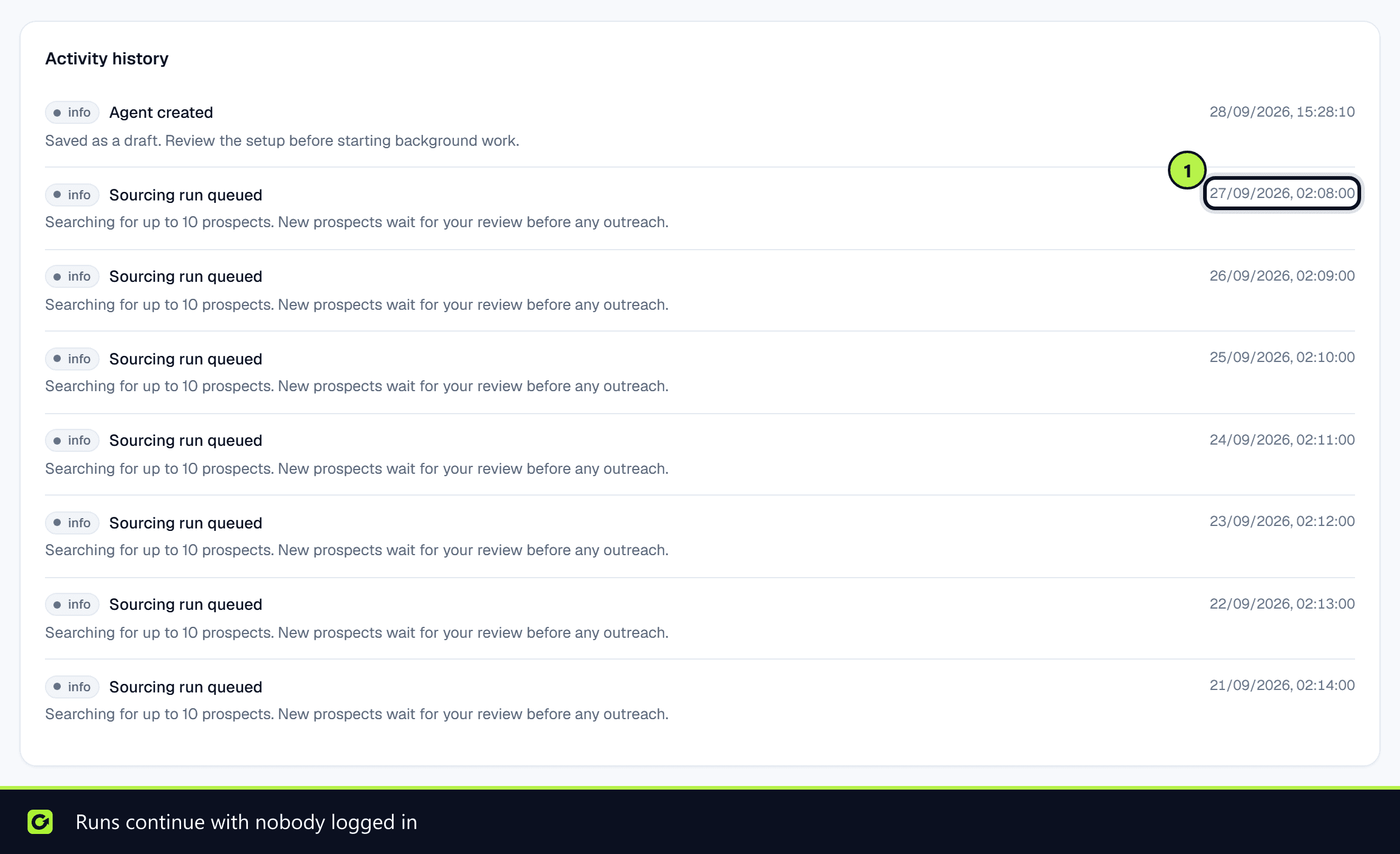
Agents run 24/7
How agents keep working when nobody is logged in, what can stop a run, and how pausing, stopping and deleting behave
2 min readUpdated 27 September 2026
Nobody needs to be logged in
Agents run on ClientTurn's servers, not in your browser. A scheduler checks every 30 seconds for agents that are due, so an agent set to run hourly, daily or weekly keeps working overnight, at weekends and when everyone has closed the app.
- When you choose Start agent, it becomes due immediately, then re-arms itself for the next hour, day or week.
- Agents that are overdue are taken oldest first, so no agent is starved by others.
- Two checks can never pick up the same agent at the same time, so a run is never done, or paid for, twice.
What stops a run
Every run re-checks the agent before it does anything. A run does not go ahead when:
- the agent is paused, stopped or deleted;
- your subscription or plan no longer covers it;
- your AI credits, or one of your AI credit limits, have been used up.
The reason appears on the agent's Activity tab.
Pause, stop and delete
| Action | The agent | Its work so far |
|---|---|---|
| Pause | Stops running on schedule. Start agent resumes it | Setup and queue are kept |
| Stop | Stops after the work in hand, and does not resume on its schedule | Prospects it found and its history are kept |
| Delete | Is removed | See below |
Deleting an agent
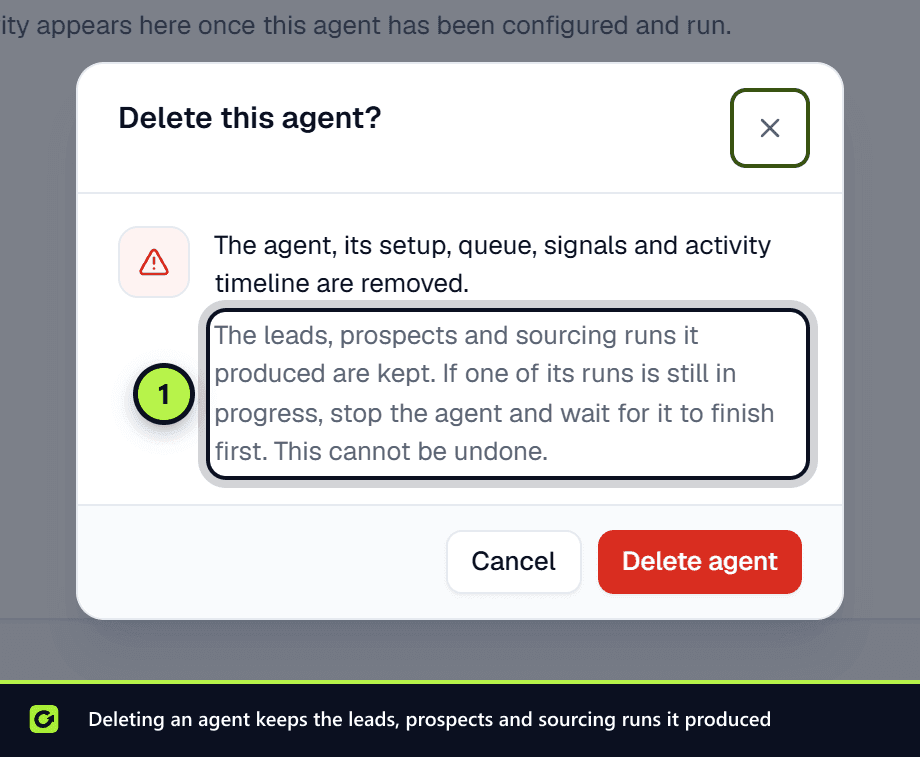
- Step 1: Open the agent and choose Delete.
- Step 2: Confirm Delete agent.
Deleting removes the agent, its setup, queue, signals and activity timeline. It keeps the leads, prospects and sourcing runs the agent produced; they simply no longer point to it. It cannot be undone.
Related
Screenshots
Still stuck?
Customers can raise a ticket from the help button inside the app. Not a customer yet? Talk to us.