
Billing
Changing your plan
Upgrade straight away with prorated billing, downgrade at the end of the period, manage everything else in the Stripe billing portal, and what changes when you do
4 min readUpdated 30 September 2026
Only the workspace owner can change the plan. Everything below is in Settings → Billing & Usage.
Upgrade to the next plan
- Step 1: Open Settings → Billing & Usage.
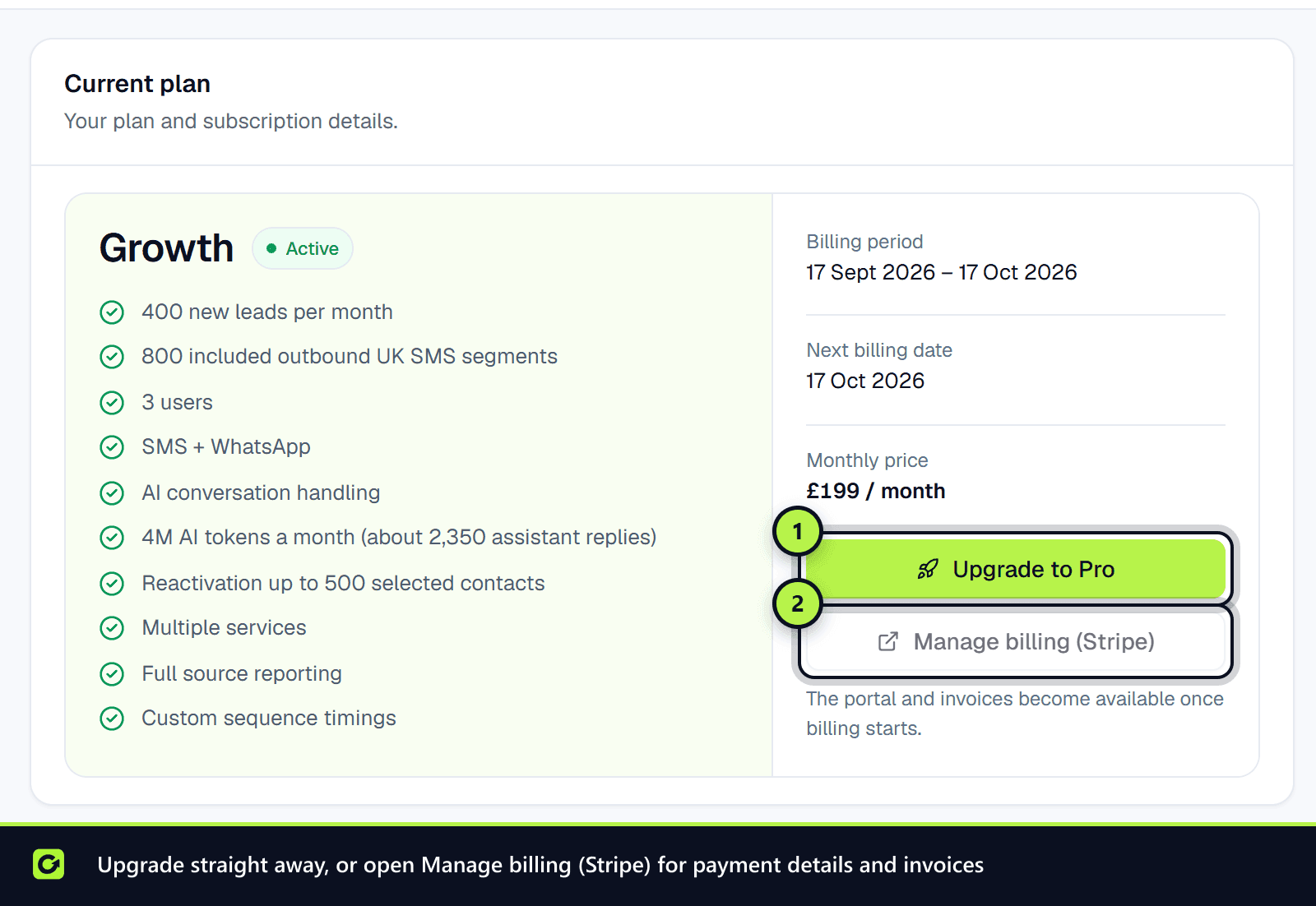
- Step 2: Under Current plan, choose Upgrade to Growth or Upgrade to Pro. The button always names the plan one step above yours.
- Step 3: The change is made straight away on your existing subscription, on the same billing interval: a monthly subscription stays monthly and an annual one stays annual. Stripe prorates it, so you pay the difference for the rest of the current period.
You can also upgrade from the cards that appear under a limit in Usage & limits once it reaches 80%, for example Growth: 400 SMS segments for £199/month. These cards only offer a plan that actually raises that limit.
There is no overage on any plan, so nothing is charged past an allowance. To keep going before the period resets, either upgrade or, for SMS, WhatsApp and AI, buy top-up credit. Leads, verified prospects, sourcing runs and outreach email stop at the allowance until the next period or an upgrade.
If you are on Pro, the button reads Talk to sales about Enterprise. Enterprise has no public price, so it opens the contact form instead of a checkout.
Upgrading during the trial
The trial keeps its end date. Trial limits still apply until the first payment succeeds, and then the new plan's allowances switch on. See Your free trial.
Downgrade to the plan below
- Step 1: Open Settings → Billing & Usage.
- Step 2: Under Current plan, choose Downgrade to Growth or Downgrade to Starter (the plan one step below yours).
- Step 3: ClientTurn shows when the change takes effect. Choose Confirm: switch to … to go ahead.
A downgrade takes effect at the end of your current billing period. You keep your current plan and its limits until then, and no refund is due for the period you have paid for. During the trial it applies straight away instead: the trial continues unchanged, and the lower plan is what you are charged for when it ends.
While a downgrade is waiting, Current plan shows Changes to [plan] on [date]. To call it off, choose Keep [your plan] instead, and your current plan renews as normal.
The downgrade button is not offered while a change is already scheduled or a cancellation is pending.
Cancel or update your card
These are handled in the Stripe customer portal:
- Step 1: Open Settings → Billing & Usage.
- Step 2: Choose Manage billing (Stripe) in the Current plan card.
- Step 3: Make the change in the portal and return to ClientTurn.
The portal buttons become available once billing has started (after you have been through checkout). The portal is also where you download past invoices. The Recent invoices table in ClientTurn shows your latest ones with a Download link.
When a cancellation is set to take effect at the end of the paid period, Settings → Billing & Usage shows Access ends with the date, in place of Next billing date.
What changes when the plan changes
- Allowances such as leads, SMS, AI credits and users follow the new plan. See Plans and what each includes.
- WhatsApp is a paid add-on on Growth and above. On a move to Starter, WhatsApp sending is no longer available.
- Top-up credit and bought AI credits stay on your balance. They do not expire.
- Seats: if you have more people than the new plan allows, you cannot invite anyone else until you are under the limit. See Team settings.
- Over the new plan's limits: a downgrade is always allowed and nothing is removed. From the day it applies, adding more of anything you are over (team members, sender identities, saved searches, intent monitors) is refused until you are back within the plan, and a campaign cannot launch while you have more active sender identities than the plan includes. When you schedule the downgrade you get a notification listing exactly what to reduce, and Settings → Billing & Usage shows the same list.
After a subscription ends
The workspace becomes read-only for 90 days. Your data stays and can be exported. To carry on, choose Resubscribe from the banner, which opens the Resubscribe to carry on page. There is no second free trial. After 90 days the workspace and its lead data are deleted, as our privacy policy sets out, and a dedicated phone number is released 14 days after the end.
Related
Screenshots
Still stuck?
Customers can raise a ticket from the help button inside the app. Not a customer yet? Talk to us.