
Copilot
Your first Copilot session
The Meet Copilot step in workspace setup, what it shows you, and how to pick it up later if you skip it
1 min readUpdated 27 September 2026
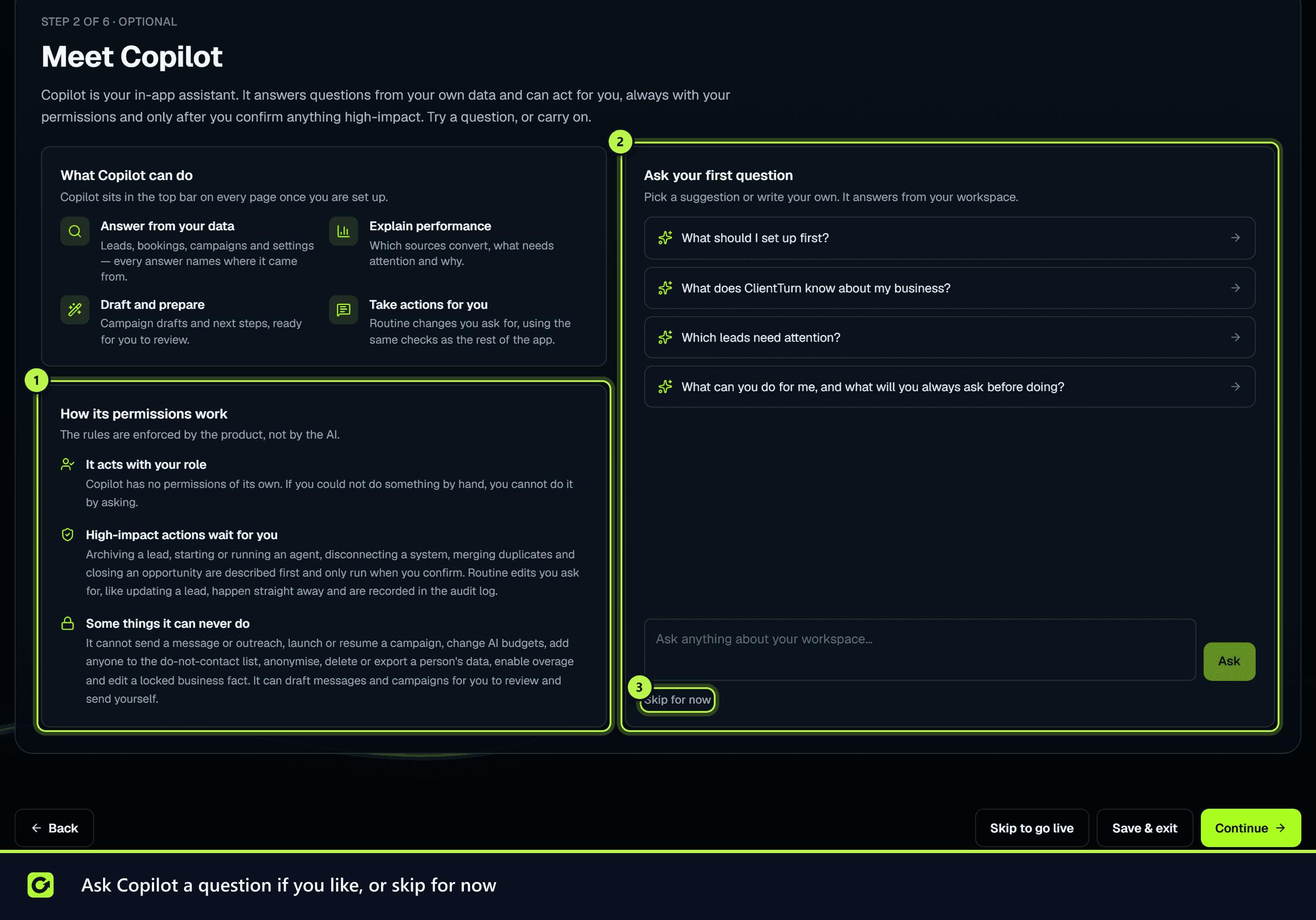
Meet Copilot is the second of six setup steps, straight after you name your workspace. It is optional, takes a minute, and introduces the assistant you will use across the product.
What the step shows
- What Copilot does: answers from your own data (every answer names where it came from), explains performance, drafts and prepares things for you to review, and takes routine actions you ask for.
- The rules, which are enforced by the product, not by the AI:
- It acts with your role. Copilot has no permissions of its own.
- Lasting actions wait for you. Sending, launching or starting an agent is described first and only runs when you confirm.
- Some things it can never do. It cannot add anyone to the do-not-contact list, anonymise or erase a person, or export their data.
Ask your first question
Pick a suggestion or write your own. The suggestions are read-only questions, so your first question can never change anything:
- "What should I set up first?"
- "What does ClientTurn know about my business?"
- "Which leads need attention?"
- "What can you do for me, and what will you always ask before doing?"
Asking is optional: Continue is available whether or not you ask.
Skipping the step
Choose Skip for now to move on. Nothing else in setup depends on it. If Copilot cannot answer at that moment, you can skip and try later.
Afterwards
Copilot is in the top bar on every page: choose Copilot to open it. See Using Copilot.
Related
Screenshots
Still stuck?
Customers can raise a ticket from the help button inside the app. Not a customer yet? Talk to us.