
Copilot
Using Copilot
What Copilot can look up and do for you, how its permissions work, when it asks before acting, and what it will never do
2 min readUpdated 27 September 2026
Copilot is the assistant built into ClientTurn. Ask it about your workspace in plain English and it answers from your own data, or takes routine actions for you using the same checks as the rest of the app.
Open Copilot
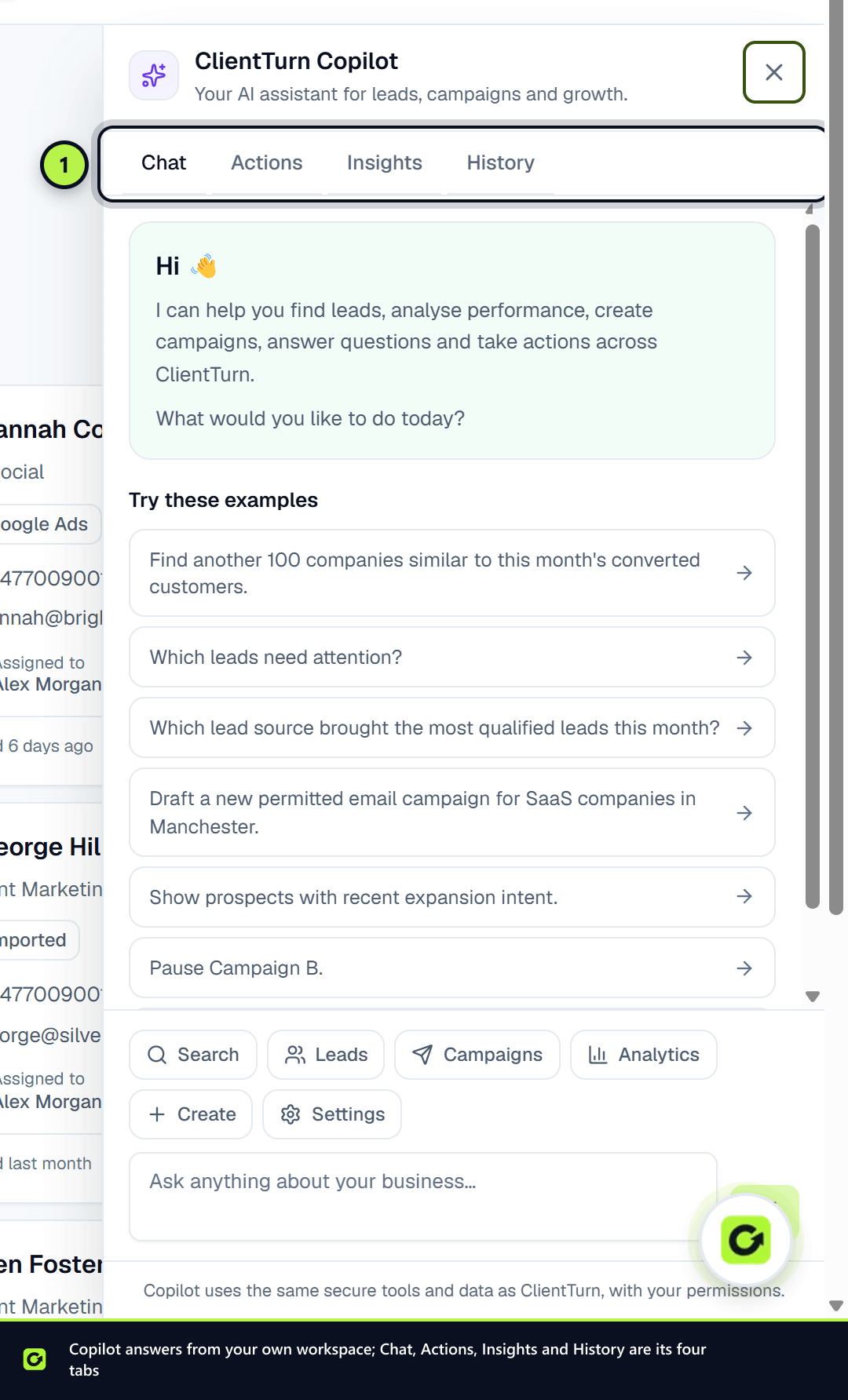
Choose Copilot in the top bar, on any page. It opens as a panel on the right (full screen on a phone). The page underneath stays usable, and the conversation stays with you as you move between pages, so you can ask about what is on screen.
The panel has four tabs:
| Tab | What it is for |
|---|---|
| Chat | Ask questions and ask for actions. Suggested prompts and shortcut chips help you start |
| Actions | Every action Copilot can take, split into Read and Act, with the role each needs |
| Insights | Observations worked out directly from your own numbers for the last 30 days, each linking to where you can act. No AI writes these, so every one can be checked against Analytics |
| History | The actions Copilot has run for you, and whether each succeeded |
Its permissions are your permissions
Copilot has no access of its own. It acts as you, with your current role, checked on every action. If you could not do something by hand, you cannot do it by asking Copilot. A viewer's Copilot can read; it cannot change anything.
It asks before anything lasting
Reading and routine changes (adding a note, assigning a lead, moving a status, drafting a message) run when you ask. Anything with a lasting or outside effect is described first, in a confirmation dialog titled with what it will do, and runs only when you confirm. For example:
- starting an agent or running one immediately;
- archiving a lead;
- closing a deal as won or lost;
- disconnecting a connected system;
- pausing a campaign, changing its priority, or changing a fact about your business.
The dialog says "Requested by Copilot, on your behalf" and explains the effect. If you do not confirm, nothing happens.
What Copilot will never do
Some things are outside Copilot's reach entirely, whoever is asking:
- Send a message to a lead, or launch or resume a campaign. It can draft a message for you to review and send.
- Suppress anyone (add them to the do-not-contact list), anonymise, erase or export a person's data. Those stay with people, on the lead's Data rights tab.
- Delete an agent.
- Create a lead, change AI credit limits, or invite, remove or change the role of team members.
- Run arbitrary database queries or web requests.
When Copilot stops early
Copilot uses your workspace's AI credits. If your credits or limits do not allow another step, it stops and tells you what it did so far. Follow-up, qualification and sending keep working without it.
Related
Screenshots
Still stuck?
Customers can raise a ticket from the help button inside the app. Not a customer yet? Talk to us.