
Finding leads
Discovering companies with Find Leads
Describe the businesses you want, approve a search plan, run it, and review the prospects before anyone is contacted
6 min readUpdated 27 September 2026
Find Leads searches for companies that match what you sell, checks them, finds a published work contact, and grades each one against your ideal customer. Everything it finds is a prospect: nothing is contacted until a person approves it.
Find Leads is not on every plan. If the page shows a plan message instead, see Plans and pricing.
1. Describe what you are looking for
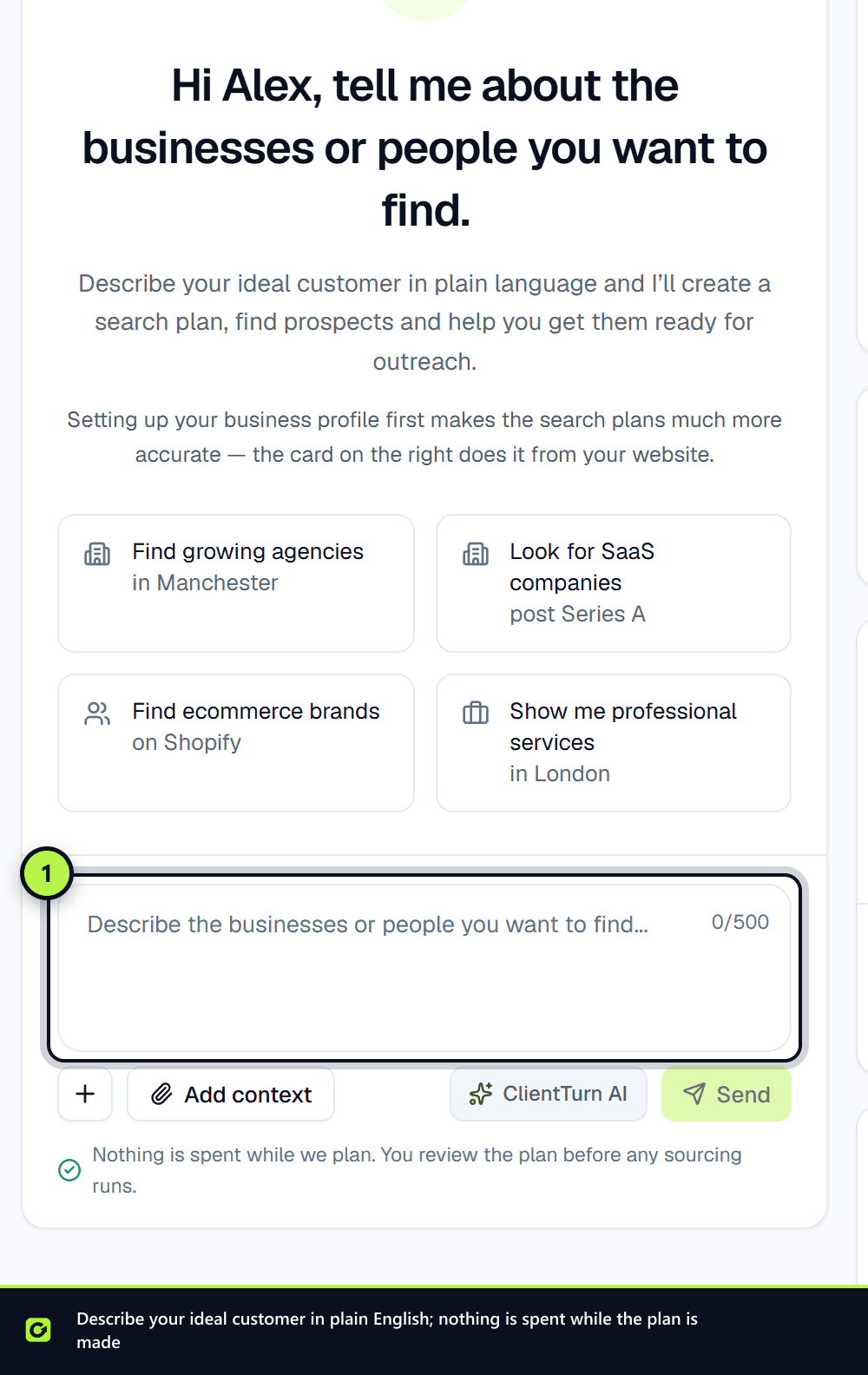
- Step 1: Open Find Leads and stay on the Discover tab.
- Step 2: In the box Describe the businesses or people you want to find..., write it as you would to a colleague, for example: "Web design agencies in Manchester with 10 to 50 staff, where I should speak to the managing director."
- Step 3: ClientTurn turns that into a structured search plan in a search session. Sessions are listed so you can come back to them, rename or duplicate them.
2. Check the search plan
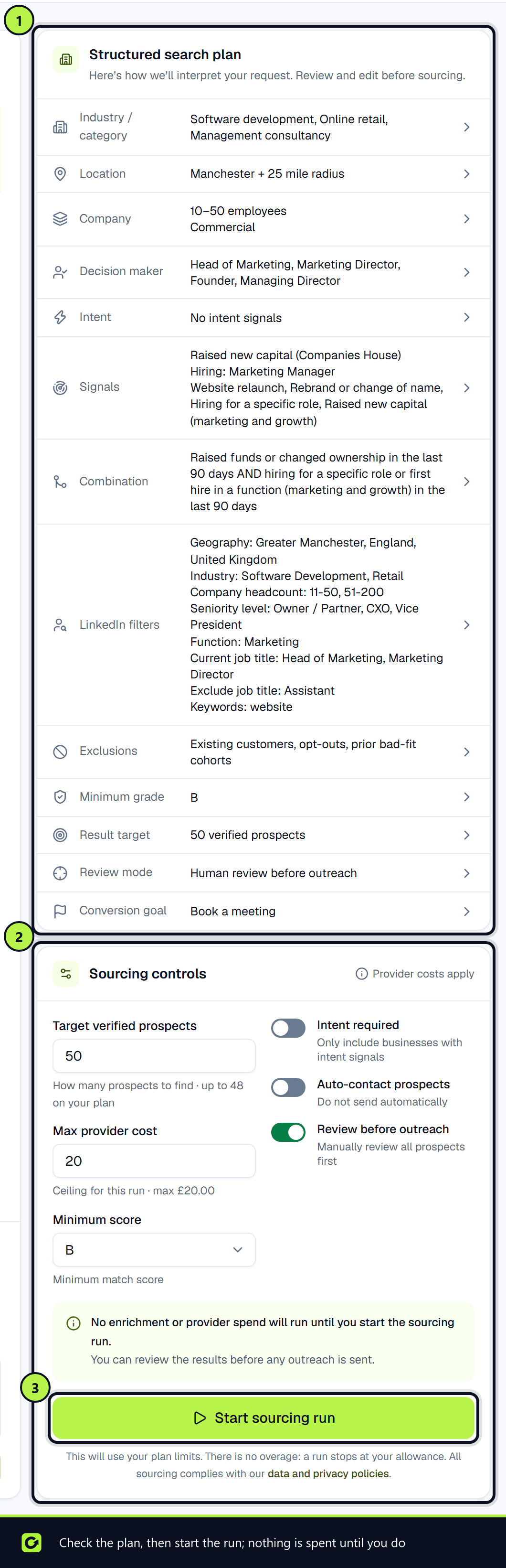
The plan is shown row by row. Choose a row to edit it:
- Industry / category — one per line, using common industry names.
- Locations — a town or city and a radius in miles.
- Company size — minimum and maximum employees.
- Decision maker — the roles you want to reach.
- Intent — your workspace's intent categories to look for, and how recent a signal must be.
- Signals — structured buying signals from free public sources (see Buying signals below).
- Combination — signals combined with AND or OR and a recency, such as "raised funds in the last 90 days AND hiring for a marketing role". Only prospects whose evidence matches are marked ready. See Intent signals explained.
- LinkedIn filters — the LinkedIn lead and account filters you target, applied by hand in LinkedIn and to your own imported list. See LinkedIn Sales Navigator, assisted.
- Exclusions — competitors, and whether to leave out existing customers.
- Minimum grade, Result target (how many verified prospects to find), Review mode and Conversion goal.
Editing a plan never spends anything.
3. Start a sourcing run
In Sourcing controls, set Target verified prospects and Minimum score, and choose whether Intent required, Auto-contact prospects and Review before outreach apply. Each verified prospect counts against your plan's monthly prospect allowance; there is no separate cost to set.
Nothing is sourced or enriched until you choose Start sourcing run. Starting a run also approves the plan, which is what lets an agent or a recurring search reuse it later. Only owners and admins can start a run, and the button explains why if your allowance for the billing period cannot cover it.
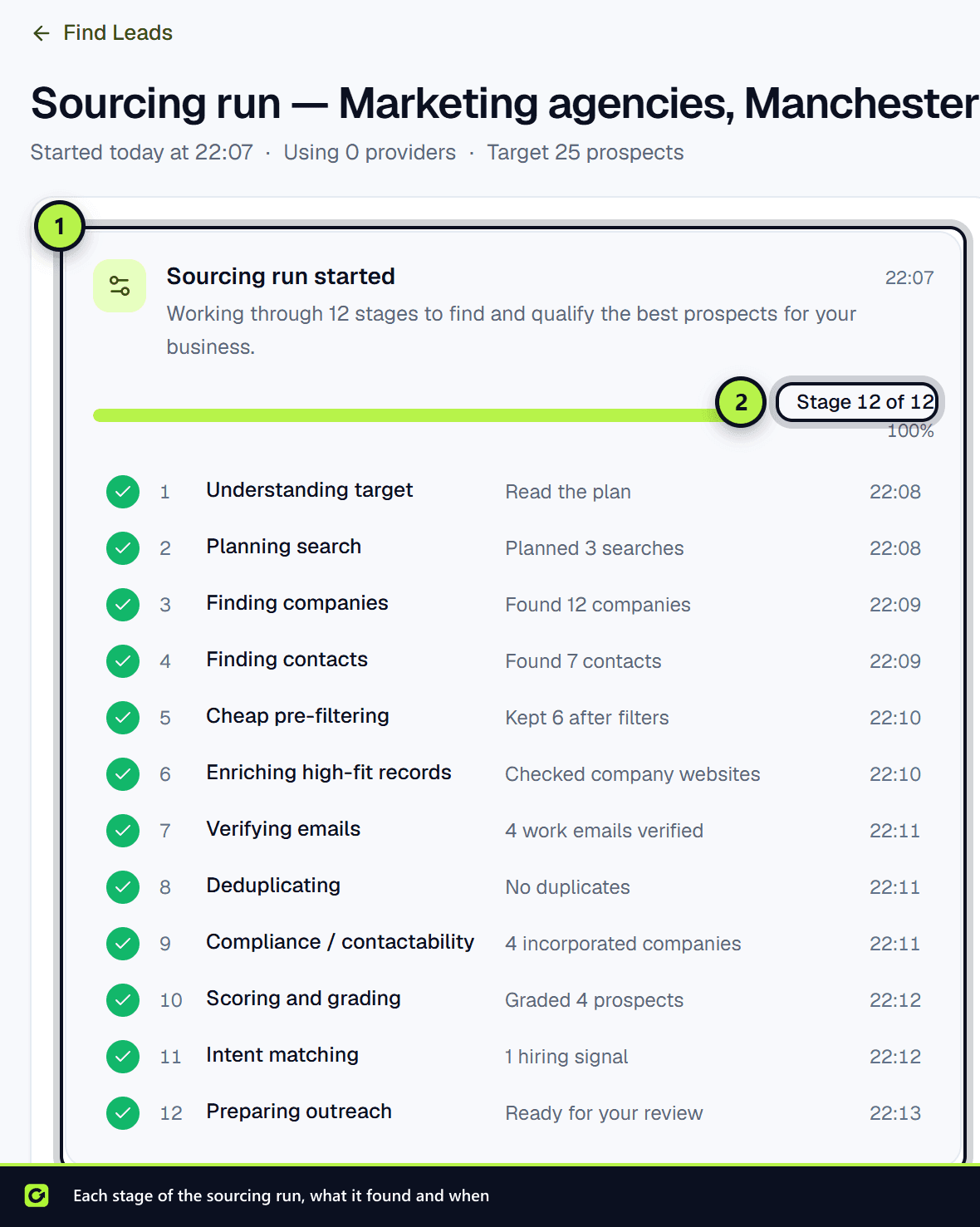
The run page shows each stage as it works: understanding the target, planning, finding companies and contacts, pre-filtering, enriching, verifying emails, deduplicating, compliance, scoring, intent matching and preparing outreach.
Where the data comes from
ClientTurn uses official APIs, licensed data and the companies' own published pages. It does not scrape social networks.
| Source | What it is used for |
|---|---|
| Google Places | Discovery only: finding candidate businesses by category and area. ClientTurn keeps Google's place ID and the business's website address, and uses the location once to test your radius. Names and addresses from Google are not stored, under Google's terms |
| Google Search | Finding company websites that have no local listing |
| Companies House | Confirming the company exists, its status and type. A match is what lets ClientTurn treat it as an incorporated business, which matters for PECR. A miss is treated as unknown, never as a sole trader. Also the source of register buying signals |
| The company's own website | Reading what the company does and any contact published on its team, about or contact pages. An email address is taken only when it appears on the page word for word; ClientTurn never guesses addresses such as first.last@. Also the source of website buying signals |
| Your own list | Your LinkedIn Connections export, or any list you own, imported as prospects. ClientTurn never searches LinkedIn itself |
| Licensed contact data | Finding and verifying a named decision maker's work email at a company already matched |
Every email address is verified before it is used.
Buying signals
The Signals row adds evidence that a company may be buying now. Each signal comes from a free, public source:
| Signal | Source | What counts |
|---|---|---|
| Raised new capital | Companies House | A share allotment (SH01) filed inside the freshness window |
| Leadership change | Companies House | A new director or LLP member appointed. Founding directors do not count. Only the role and date are kept, never the person's name |
| Newly incorporated | Companies House | Incorporated inside the window |
| Moved registered office | Companies House | An address change (AD01). It is often just a new accountant, so it counts for less |
| Hiring for these roles | The company's website | A role you name, on a careers or jobs page |
| Uses these technologies | The company's website | Shopify, WooCommerce, WordPress, Webflow, HubSpot, Salesforce (Pardot), Intercom, Stripe and others, detected from the scripts the site loads |
Under More buying signals the same row offers the full catalogue: funding rounds such as seed and Series A, grants, acquisitions, new C-level, VP and Head-of hires, key departures, hiring by function, new offices, rebrands, website relaunches, awards, partnerships, tool changes, public website issues, tenders, filing deadlines and accounts growth. Each is found only where a free source backs it, and a named round such as Series A needs the company's own announcement: a share allotment only shows that money went in. Intent signals explained lists every signal, its source and how long it counts.
Your intent categories are also matched against the company's homepage, about, team, careers, news, press and blog pages. Recent posts are found through the site's sitemap. ClientTurn reads the site's robots.txt first and skips any page it disallows.
Recent content counts for more than old content, and content outside the freshness window does not count. Several distinct matches count for more than one. Website evidence is capped below register evidence, so a blog post alone cannot make a prospect an A.
The Companies House signals need a Companies House API key. The key is free from the Companies House developer hub. Without one, those signals are shown as unavailable, with what to connect, and cannot be selected. Competitor audiences are not offered, because no free and lawful source can list them. ClientTurn does not track visitors to your own website.
Why this lead
Every signal records what was seen, where it was seen (a page URL or a Companies House register page), the date, and the text that matched. Open a prospect to see these under Why this lead.
4. Review prospects
Open the Prospects tab. Each prospect shows its company summary, grade, contactability, verification and the evidence and provenance behind it.
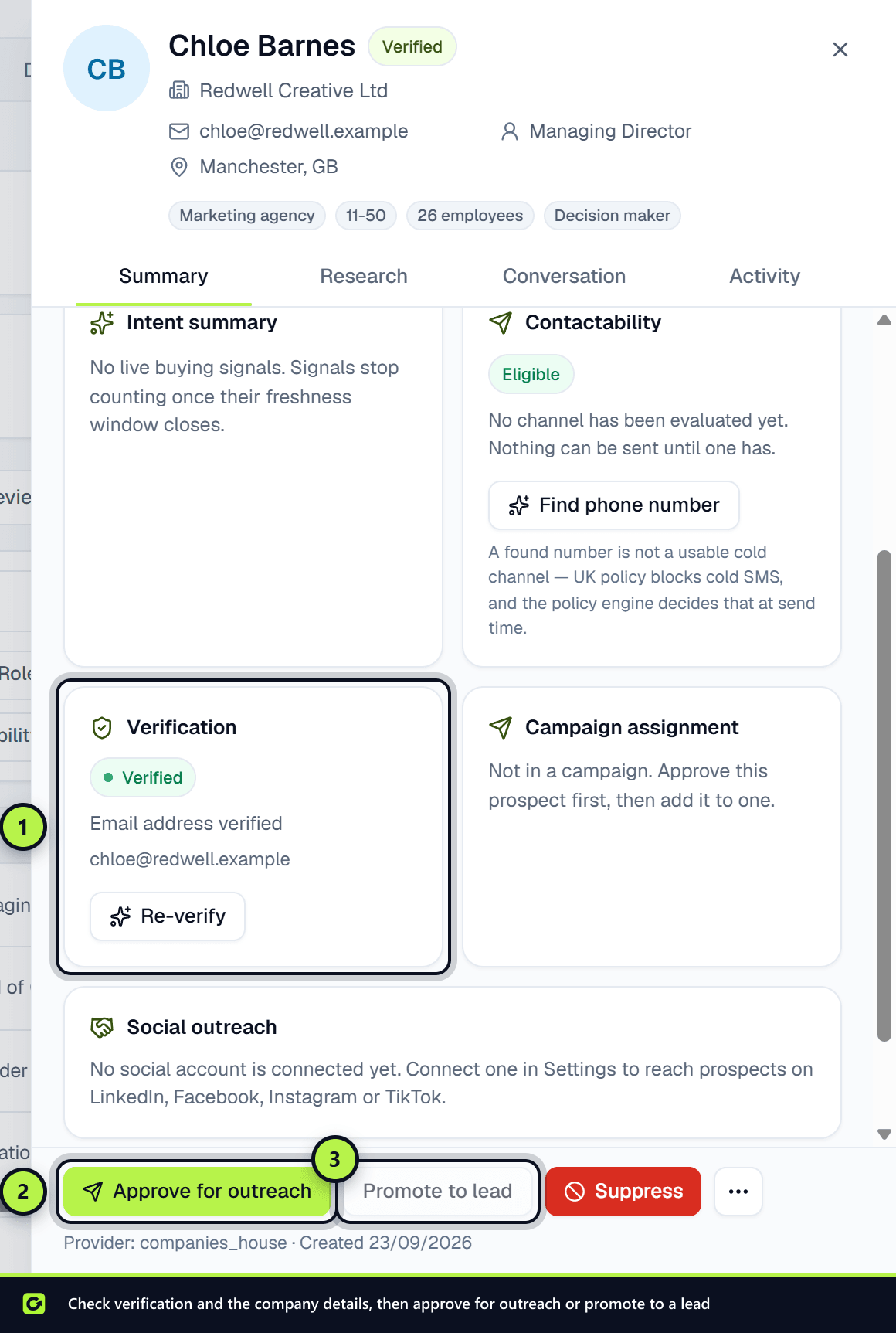
- Approve for outreach marks a prospect ready for a campaign. It is only possible once contactability is confirmed.
- Suppress adds them to your do-not-contact list, with a reason.
- Promote to lead moves them to Leads. You must say how the business actually knows this person, because a found contact is not a warm lead.
You can select several prospects and use the bar at the bottom to approve or suppress them together.
Run it on a schedule
On the Discover tab, choose Create recurring search, pick the Search to repeat, How often and Prospects per run. It re-runs the plan you approved, within your allowance. Editing the session afterwards stops the schedule running the old plan until you approve again. You can pause, resume or stop a recurring search; prospects it already found are kept.
For a background worker that sources, books and re-engages together, see What are AI agents?.
Related
Screenshots
Still stuck?
Customers can raise a ticket from the help button inside the app. Not a customer yet? Talk to us.