
Developers
API keys: reading your workspace from your own systems
Create a key, choose what it may do, restrict where it can be used from, and revoke it
2 min readUpdated 27 September 2026
Create a key
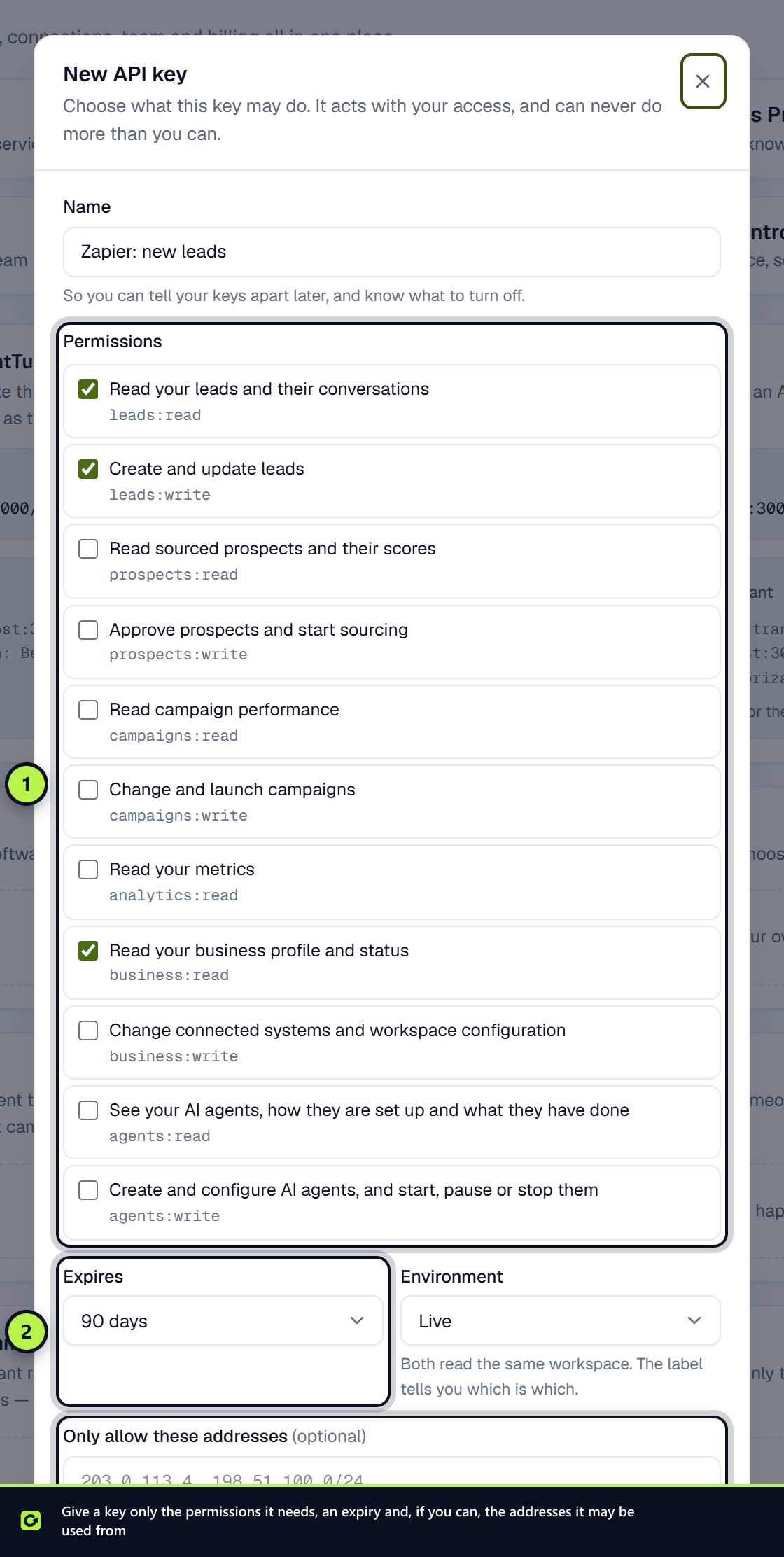
- Step 1: Open Settings → Developer and, under API keys, choose New key. Only owners and admins can see this page.
- Step 2: Give the key a Name that says what uses it, for example "Zapier — lead sync".
- Step 3: Under Permissions, tick only what the key needs. Nothing is selected for you, because what leaves your workspace is your decision. The permissions are explained in API overview and authentication.
- Step 4: Choose when it Expires: 30 days, 90 days (the default), 1 year, or No expiry.
- Step 5: Choose the Environment, Live or Test. Both read and change the same workspace; the label only helps you tell keys apart. Live keys start
ct_live_and test keysct_test_. - Step 6: Optionally list addresses under Only allow these addresses (see below).
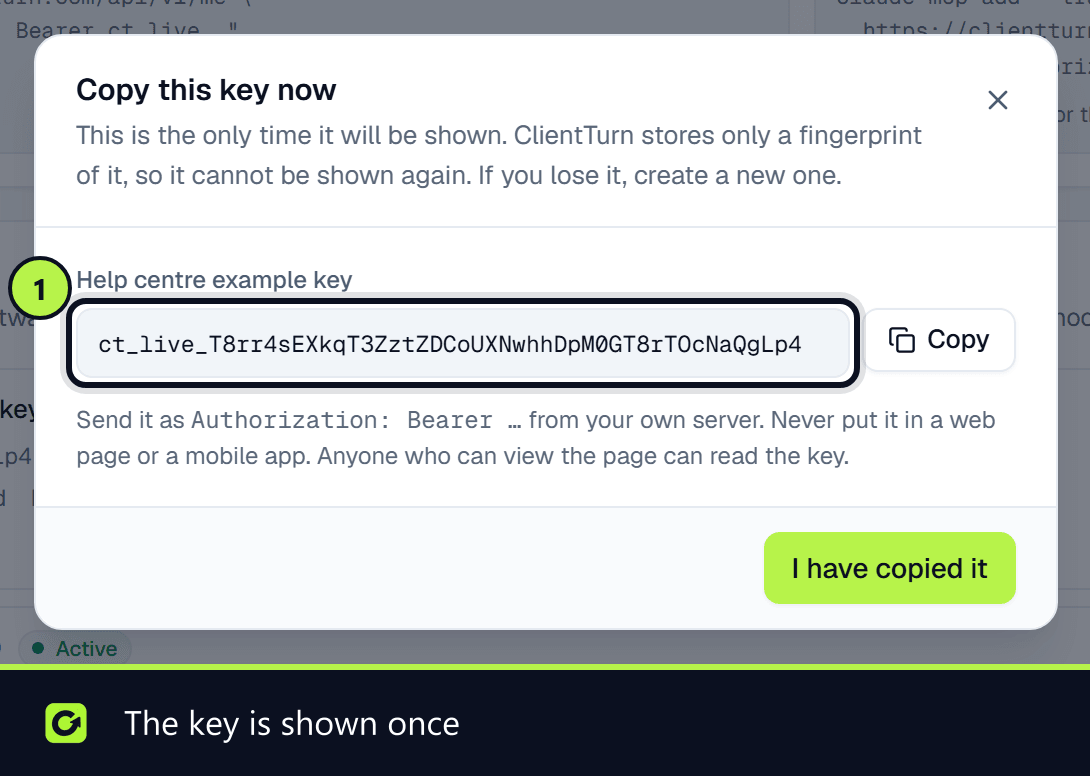
- Step 7: Copy this key now. It is shown once. ClientTurn stores only a fingerprint of it, so if you lose it you create a new one rather than recovering the old.
Use it from your server
Send it from your own server as an Authorization header:
Authorization: Bearer ct_live_…
Whose authority a key carries
A key acts with the access of the person who created it, and can never do more than they can. Their current role is re-read on every request, so if they are removed from the workspace or moved to a lower role, the key loses that reach immediately, without anyone having to find it and revoke it.
Restrict where it can be used
If your integration runs from a fixed address, list it under Only allow these addresses: single IP addresses, or IPv4 ranges such as 198.51.100.0/24, separated by commas. A request from anywhere else is refused, so a stolen key is useless.
See and revoke keys
Each key shows when it was last used (or Never used) and when it expires. To revoke one, choose the revoke button on its row and confirm. Anything using it stops working immediately, and this cannot be undone. Revoked keys are listed separately underneath.
Your first call
Start with GET /api/v1/me. It returns the workspace, the key's permissions and the live role behind it, so if a later call is refused you can see which of the three is the reason.
Related
- API overview and authentication
- Connecting an AI assistant, which uses the same keys
Screenshots
Still stuck?
Customers can raise a ticket from the help button inside the app. Not a customer yet? Talk to us.