
Developers
Connecting an AI assistant (MCP)
Let Claude, Codex, Gemini or another MCP client work inside your workspace safely, with the permissions you choose
2 min readUpdated 26 September 2026
ClientTurn is an MCP server. An AI assistant that supports the Model Context Protocol, such as Claude, Codex or Gemini, can connect to it and read or work your leads, prospects, agents and settings, within the permissions you give it.
Connect the assistant
The simplest route is an assistant connection. Owners and admins can create one.
- Step 1: Open Settings → Developer, find Assistant connections and choose New connection.
- Step 2: Give it a Name you will recognise later, such as "Claude on my laptop", tick the Permissions it needs, and choose Create connection.
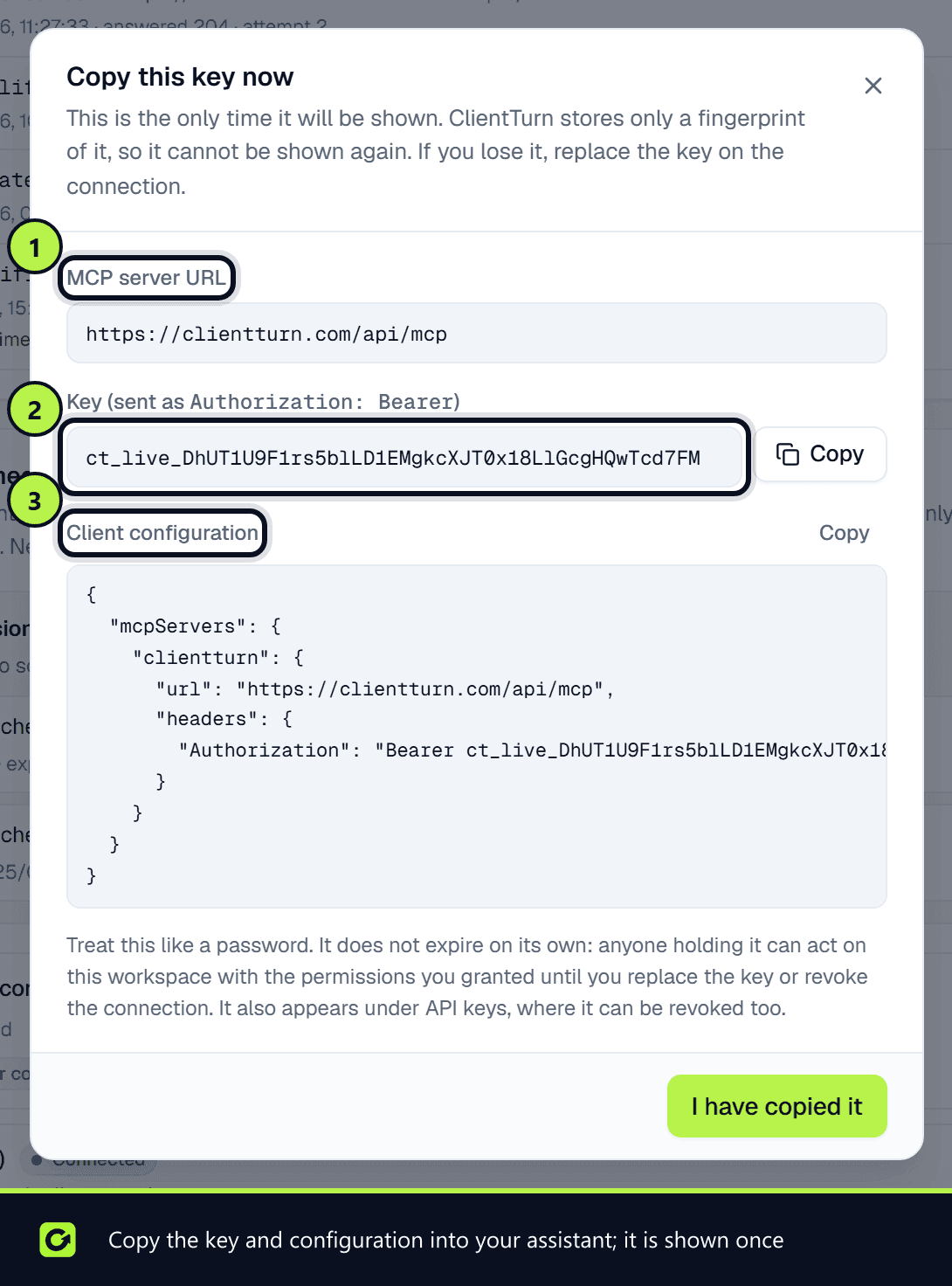
- Step 3: Copy this key now opens. It shows the MCP server URL (your ClientTurn address followed by
/api/mcp), the Key, and a ready-made Client configuration you can copy into your assistant's settings. The key is shown only this once; choose I have copied it when you have.
What the connection issues is a workspace API key, limited to the permissions you ticked and tied to that connection. It also appears in the API keys list, where it can be revoked too. It does not expire on its own.
- Replace key on the connection issues a new key and stops the old one working. Use it if the key is lost or may have leaked. A connection with no working key shows Issue key instead.
- Revoking the connection stops its key immediately, and cannot be undone.
The copied configuration looks like this, and suits Claude Desktop, Cursor and most other MCP clients:
{
  "mcpServers": {
    "clientturn": {
      "url": "https://<your ClientTurn address>/api/mcp",
      "headers": { "Authorization": "Bearer ct_live_…" }
    }
  }
}
In Claude Code you can add it from the command line instead:
claude mcp add --transport http clientturn https://<your ClientTurn address>/api/mcp --header "Authorization: Bearer ct_live_…"
You can also use an ordinary key from Settings → Developer → New key, with the MCP scopes the assistant needs. See API keys. The same key works for the API and for MCP.
The Assistant connections panel also holds requests waiting for your approval.
What the assistant can do
The assistant can do what you granted and nothing else:
- It only sees the tools its permissions allow. A tool it has no permission for is not even listed, so it cannot discover a capability it cannot use.
- It cannot outrank you. It acts with the access of the person the key belongs to, and that person's current role is checked on every call.
- It can never set an AI model, a prompt or a token budget, or change an agent's own limits unattended.
For the full list of tools, see MCP tools and approvals.
Actions that wait for a person
Anything with lasting consequences does not run when the assistant asks. Sending a message, launching a campaign, starting an agent, archiving a lead or disconnecting a system parks in your workspace for a person to approve, with a plain-English summary of what was requested.
Every call the assistant makes, and every refusal, is recorded. Revoking the key or the connection disconnects it immediately.
Related
- MCP tools and approvals
- Leads from MCP
- Using Copilot, the assistant built into ClientTurn
Screenshots

Still stuck?
Customers can raise a ticket from the help button inside the app. Not a customer yet? Talk to us.