
Developers
Setting up a webhook
Step by step, add an HTTPS endpoint, choose its events, store the signing secret, send a test and read the delivery log
2 min readUpdated 27 September 2026
Before you start
- You need to be an owner or admin. Settings → Developer is not visible to other roles.
- You need an HTTPS address on your server that is reachable from the public internet. Plain HTTP, private network addresses and addresses that redirect are refused.
- If Settings → Developer says the deployment cannot store webhook signing secrets yet, endpoints cannot be created until that is configured.
Add the endpoint
- Step 1: Open Settings → Developer and, under Webhooks, choose Add endpoint.
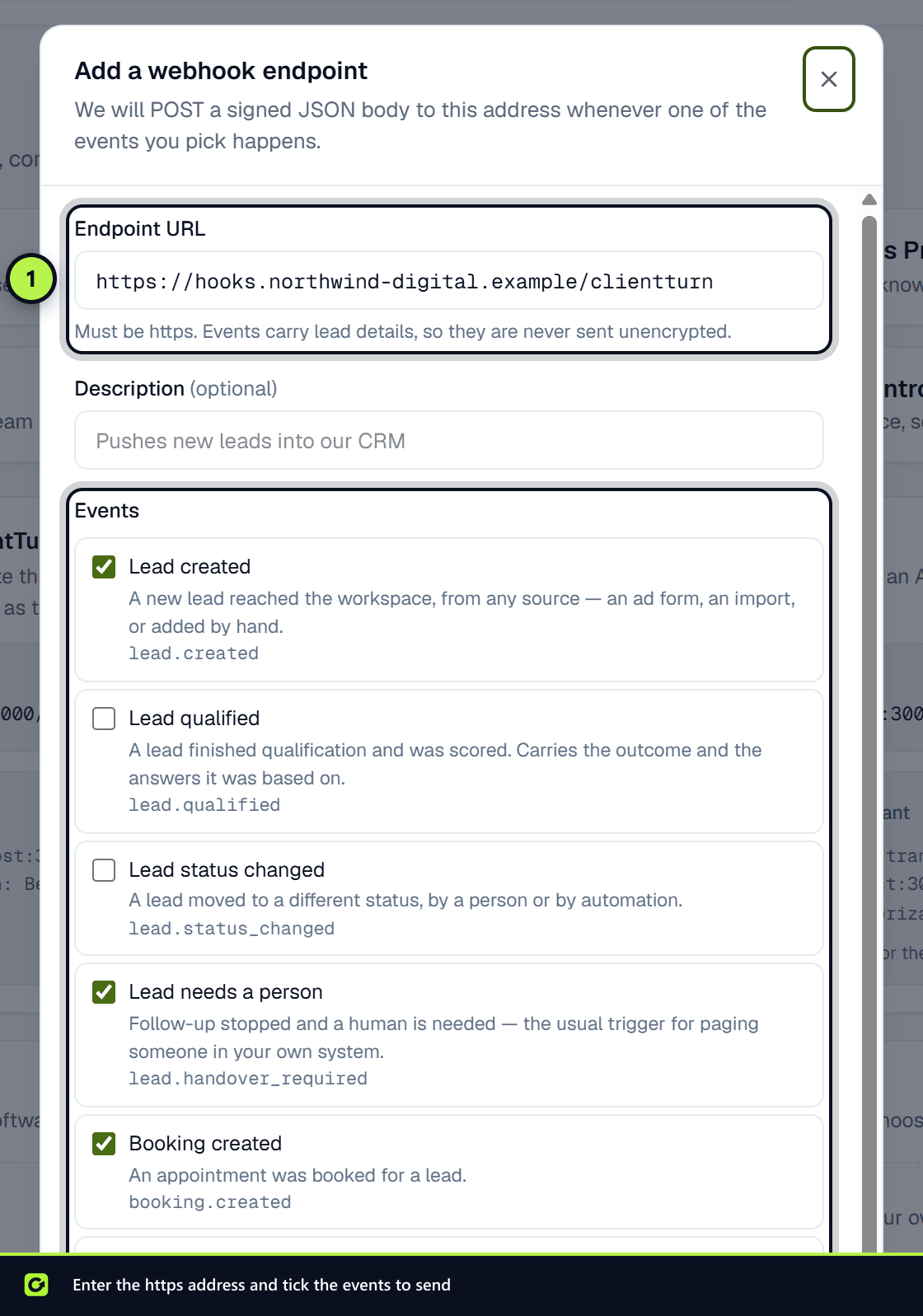
- Step 2: Enter the Endpoint URL, for example
https://example.com/hooks/clientturn. - Step 3: Optionally add a Description, such as "Pushes new leads into our CRM".
- Step 4: Under Events, tick the events you want. Each shows its name, what it means and its type. See the full list in Webhooks.
- Step 5: Choose Add endpoint.
- Step 6: Copy this signing secret now. It is shown once. Store it where your server can read it, then choose I have copied it.
Verify requests on your server
Check the clientturn-signature header on every request against the raw body, using the signing secret, before you act on it. There is a worked example in Webhooks.
Send a test
On the endpoint's row, choose Test. ClientTurn queues an endpoint.test event, which appears in Recent deliveries within a few seconds with the status your server returned. A test never creates or changes anything in your workspace.
Manage the endpoint
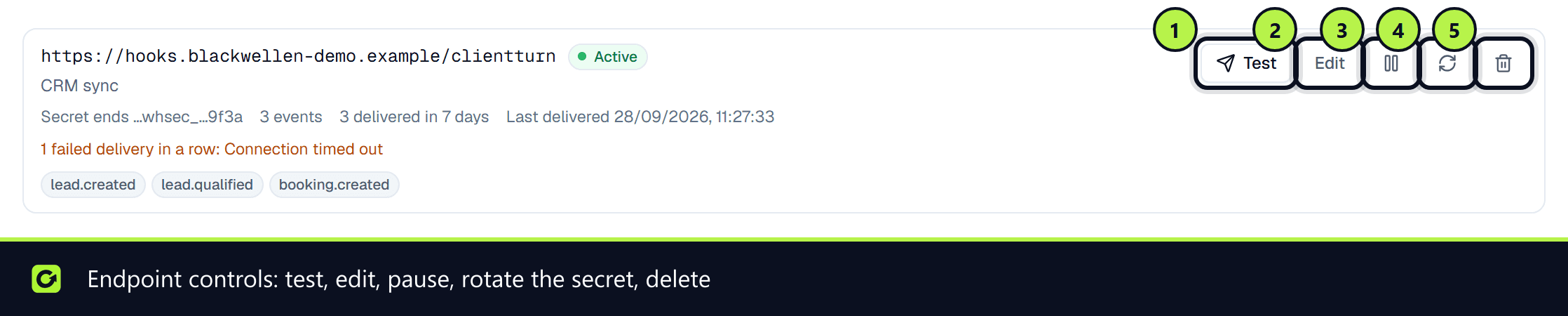
Each endpoint row has these controls:
| Control | What it does |
|---|---|
| Test | Sends an endpoint.test event |
| Edit | Changes which events are sent to this address |
| Pause / switch on | Stops or restarts deliveries. Also switches back on an endpoint that was disabled after repeated failures |
| Rotate signing secret | Issues a new secret. The old one stops working immediately, with no overlap |
| Delete | Stops sending to this address and cancels anything queued for it. Cannot be undone |
Read the delivery log
Recent deliveries shows each event with its status: Queued, Delivered, Retrying, Gave up or Cancelled, what your server answered, and when the next attempt is due.
Related
Screenshots
Still stuck?
Customers can raise a ticket from the help button inside the app. Not a customer yet? Talk to us.