
Finding leads
Importing leads from a CSV file
Upload a spreadsheet of contacts, match its columns, say how you know these people, and decide what becomes a lead or a prospect
2 min readUpdated 26 September 2026
The import wizard turns a CSV file into leads, prospects, or both. It asks how you know the people on the list, because that decides whether a row becomes a lead you can follow up, or a prospect that waits for review.
Before you start
- You need to be an owner or admin.
- The file must be a CSV (export it from your spreadsheet or CRM as "CSV"). The limit is 5 MB and 5,000 rows per import; split larger files.
- Every row needs at least an email address or a phone number, or there is no way to reach that person.
Import a file
- Step 1: Open Leads and choose Import, next to Add lead.
- Step 2: File — choose your CSV.
- Step 3: Columns — match each ClientTurn field to a column in your file, or leave it as Not in this file. The fields are First name, Last name, Company, Email, Phone, Postcode, Job title, Where they came from and Notes. You must map an email or a phone column.
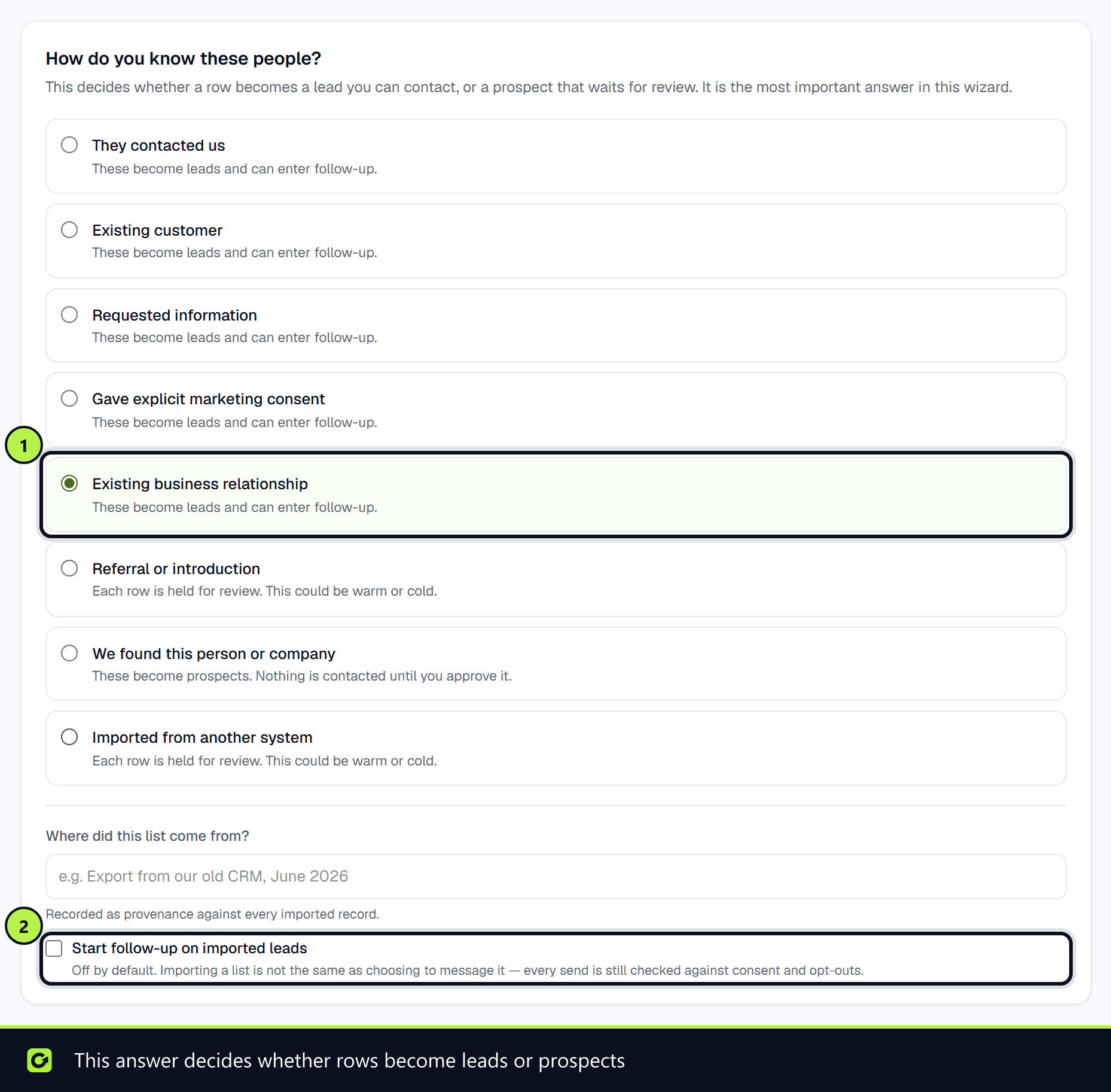
- Step 4: Relationship — answer How do you know these people? (see below). Add Where did this list come from?, for example "Export from our old CRM, June 2026". It is saved against every record as its source.
- Step 5: Decide whether to tick Start follow-up on imported leads. It is off by default.
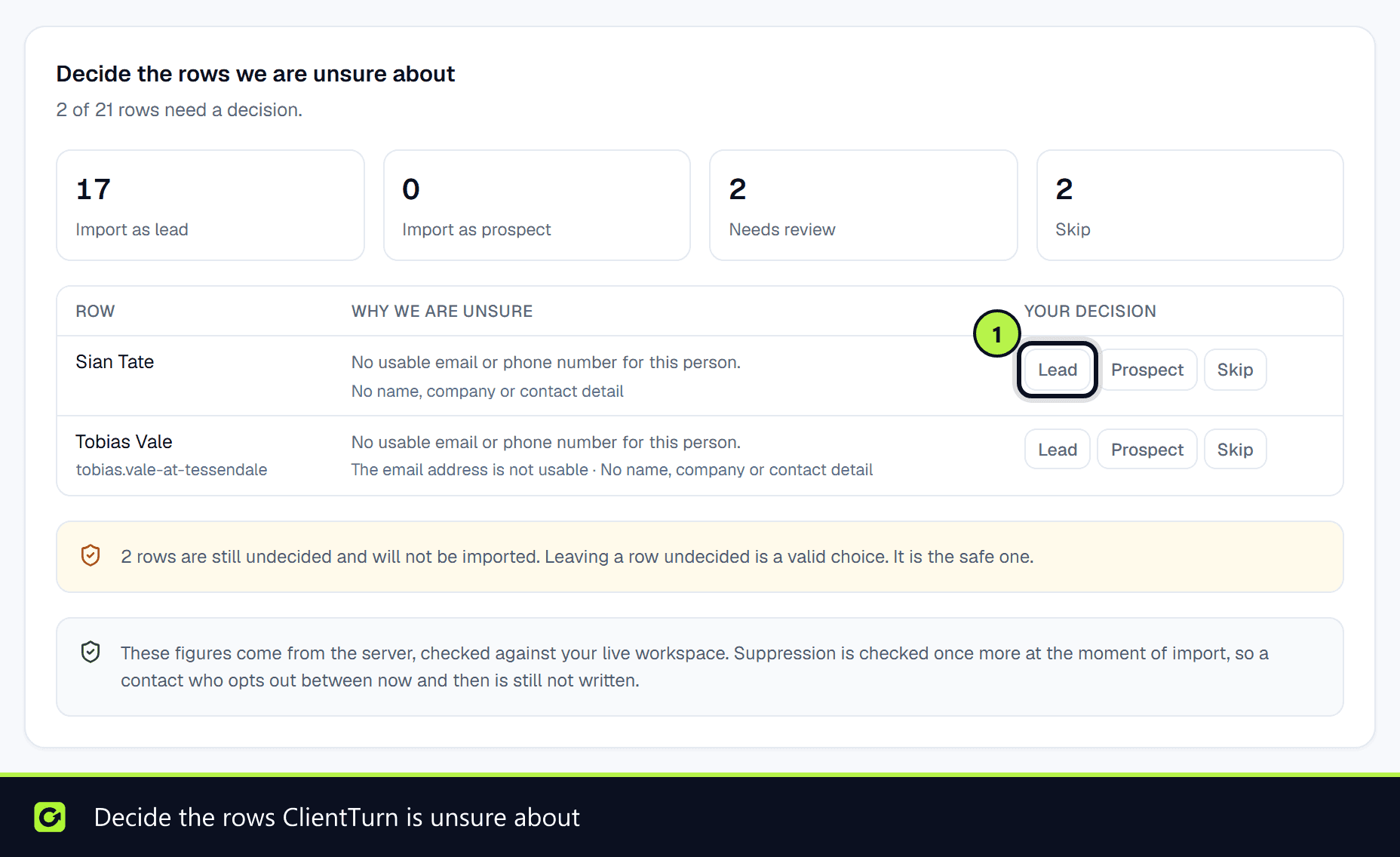
- Step 6: Review — choose Check against your workspace. Every row is checked against your live leads, prospects and suppression list.
- Step 7: Resolve any rows under Decide the rows we are unsure about: choose Lead, Prospect or Skip for each.
- Step 8: Choose Import to finish. The button shows how many records will be imported.
How you know these people
| Your answer | What the rows become |
|---|---|
| They contacted us, Existing customer, Requested information, Gave explicit marketing consent, Existing business relationship | Leads, which can enter follow-up |
| Referral or introduction, Imported from another system | Each row is held for you to decide: this could be warm or cold |
| We found this person or company | Prospects in Find Leads. Nothing is contacted until you approve them |
Rows that are skipped automatically
The check skips a row, and tells you why, when:
- it has neither a usable email nor a phone number;
- the email uses a disposable address domain;
- the address or number is on your suppression list;
- the person is already a lead or a prospect in your workspace.
It also flags, without skipping, rows with an invalid email or phone, a shared mailbox such as info@, a personal email domain, or a duplicate elsewhere in the same file.
Related
Screenshots
Still stuck?
Customers can raise a ticket from the help button inside the app. Not a customer yet? Talk to us.