
Finding leads
Bulk actions on leads
Select several leads and assign, re-status, re-score, add to a campaign, start or stop follow-up, suppress, archive or export them at once
2 min readUpdated 27 September 2026
Select leads
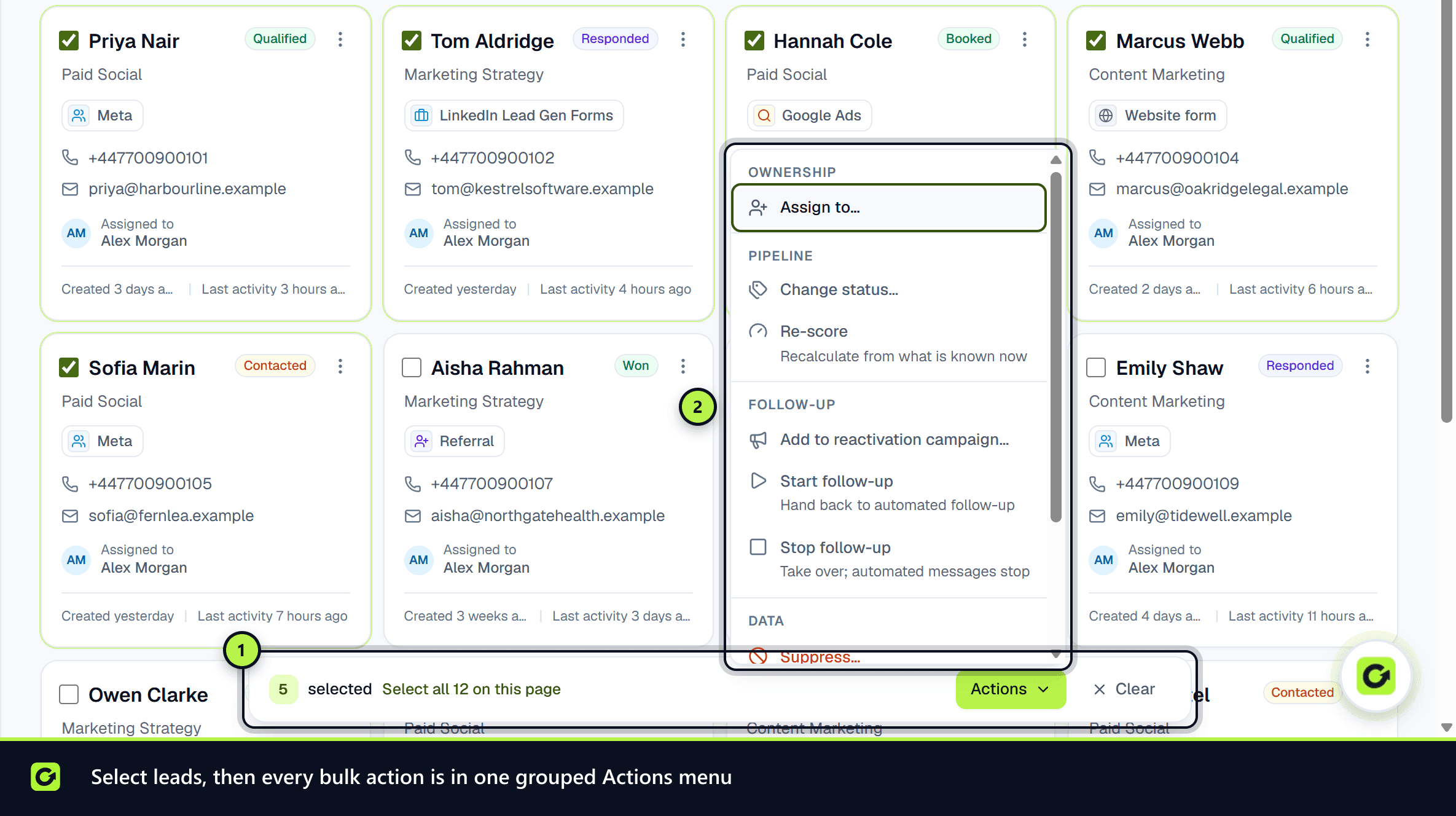
- Step 1: Open Leads and tick the leads you want. A bar appears at the bottom of the screen showing how many are selected.
- Step 2: To take the whole page, choose Select all … on this page.
- Step 3: Choose Actions to open the menu.
You can act on up to 200 leads at once. Choose Clear to deselect.
What you can do
The menu only shows the actions your role allows.
| Group | Action | What it does | Who can |
|---|---|---|---|
| Ownership | Assign to… | Sets the owner, or unassigns | Member and above |
| Pipeline | Change status… | Moves the leads to one status. Won and Lost ask why; the reason is recorded on each lead's deal | Member and above |
| Pipeline | Re-score | Recalculates the score from what is known now | Member and above |
| Follow-up | Add to reactivation campaign… | Adds the leads to a draft, scheduled or paused campaign | Owner or admin |
| Follow-up | Start follow-up | Hands the leads back to automated follow-up | Member and above |
| Follow-up | Stop follow-up | Takes the leads over; automated messages stop | Member and above |
| Data | Suppress… | Do-not-contact on every channel, with a reason and optional note | Member and above |
| Data | Archive… | Hides the leads from lists and stops follow-up | Owner or admin |
| Data | Export | Downloads a CSV of the selected leads | Owner or admin |
Suppress… and Archive… ask you to confirm first.
Reading the result
Each lead is handled on its own, using the same rules as acting on it individually, so the result tells you what actually happened, for example "12 archived, 2 skipped: this lead opted out". Leads that did not change stay selected, so you can see which they were and why.
Related
Screenshots
Still stuck?
Customers can raise a ticket from the help button inside the app. Not a customer yet? Talk to us.