
Finding leads
The lead page
Everything about one lead on one page, its tabs, the facts in the header, and every action you can take from it
2 min readUpdated 27 September 2026
Click a lead in Leads to open its drawer: the conversation, qualification result and next action, without leaving the list. For the full picture, choose Open full page in the drawer.
The header
At the top of the page you will see:
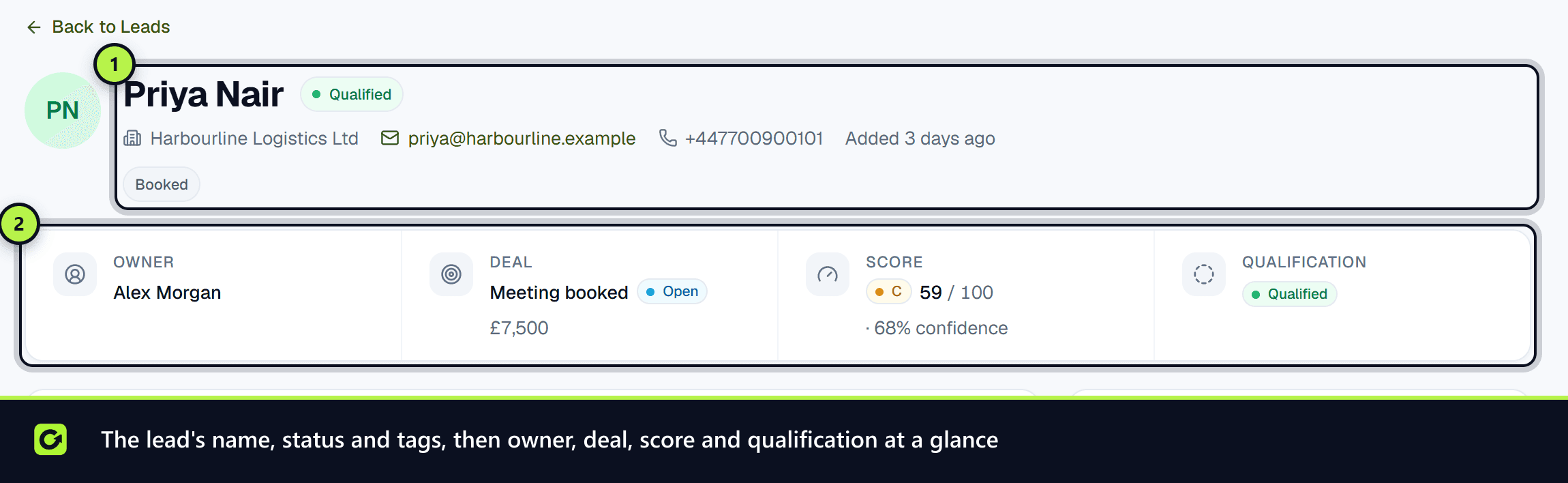
- The lead's name, company and any badges: Archived, Opted out, or With a person when someone has taken the conversation over.
- Tags added automatically from what is known about the lead.
- Owner, Deal (which opens when the lead qualifies), Score and Qualification.
- The score's grade and dimensions, the evidence behind it, and what is Worth finding out.
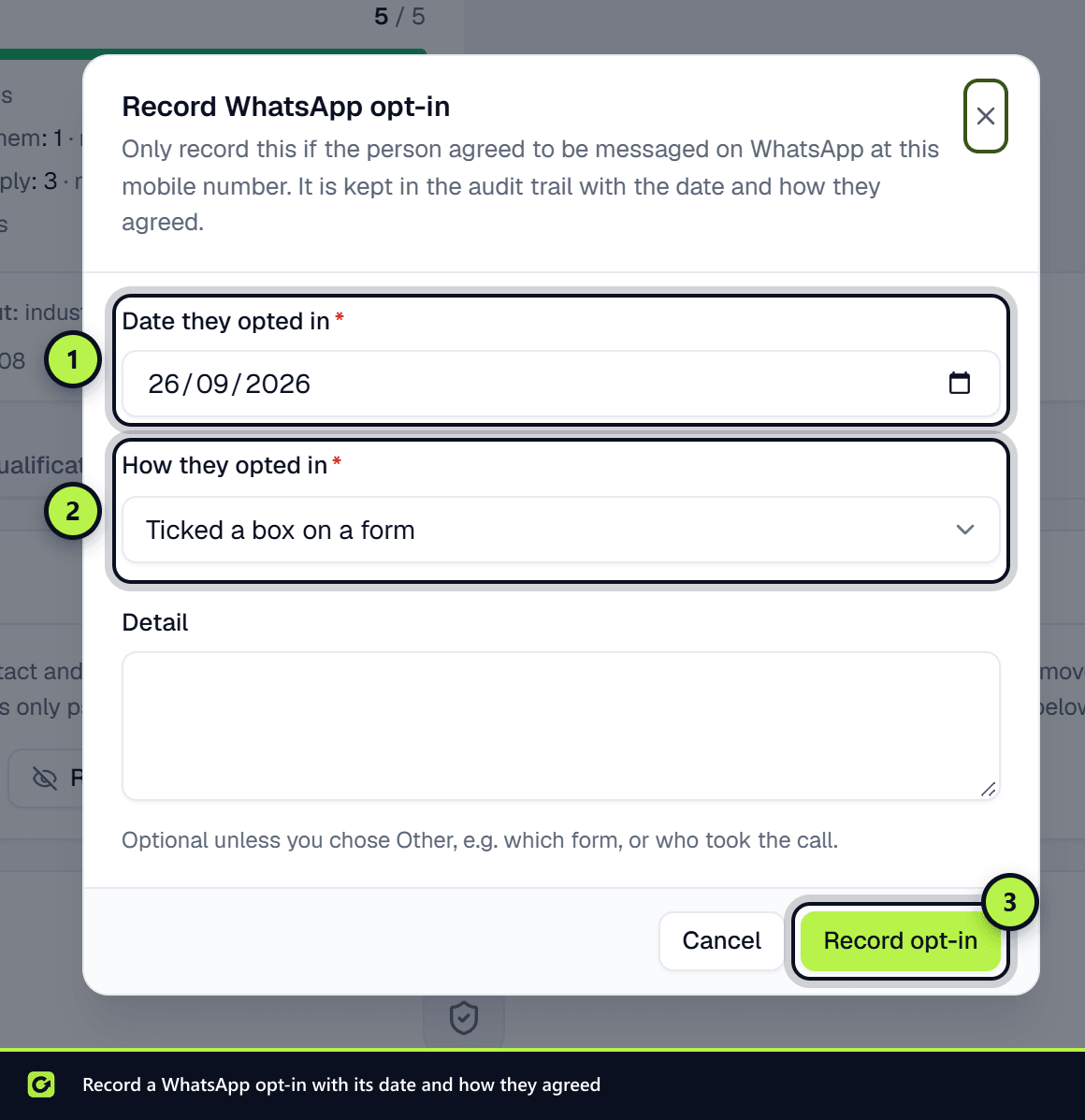
- A contactability strip showing, for each channel (Email, SMS, WhatsApp, Social), whether this lead can be contacted and why. Beneath it, the WhatsApp opt-in on record, or Record WhatsApp opt-in to add one. See Consent and WhatsApp opt-in.
The tabs
| Tab | What it shows |
|---|---|
| Conversation | Every message on every channel, and the composer for replying |
| Qualification | The questions asked, the answers given and the result |
| Score history | Each score the lead has had, and what triggered it |
| Attribution | Every touch: the source, form, campaign, ad and UTM details for each time they enquired |
| Activity & audit | What happened to the lead and who did it |
| AI | What the conversation assistant did on this lead |
| Data rights | Suppress, restrict, export, anonymise or erase this person's data |
The tab is part of the page address, so you can link a colleague straight to it.
Actions
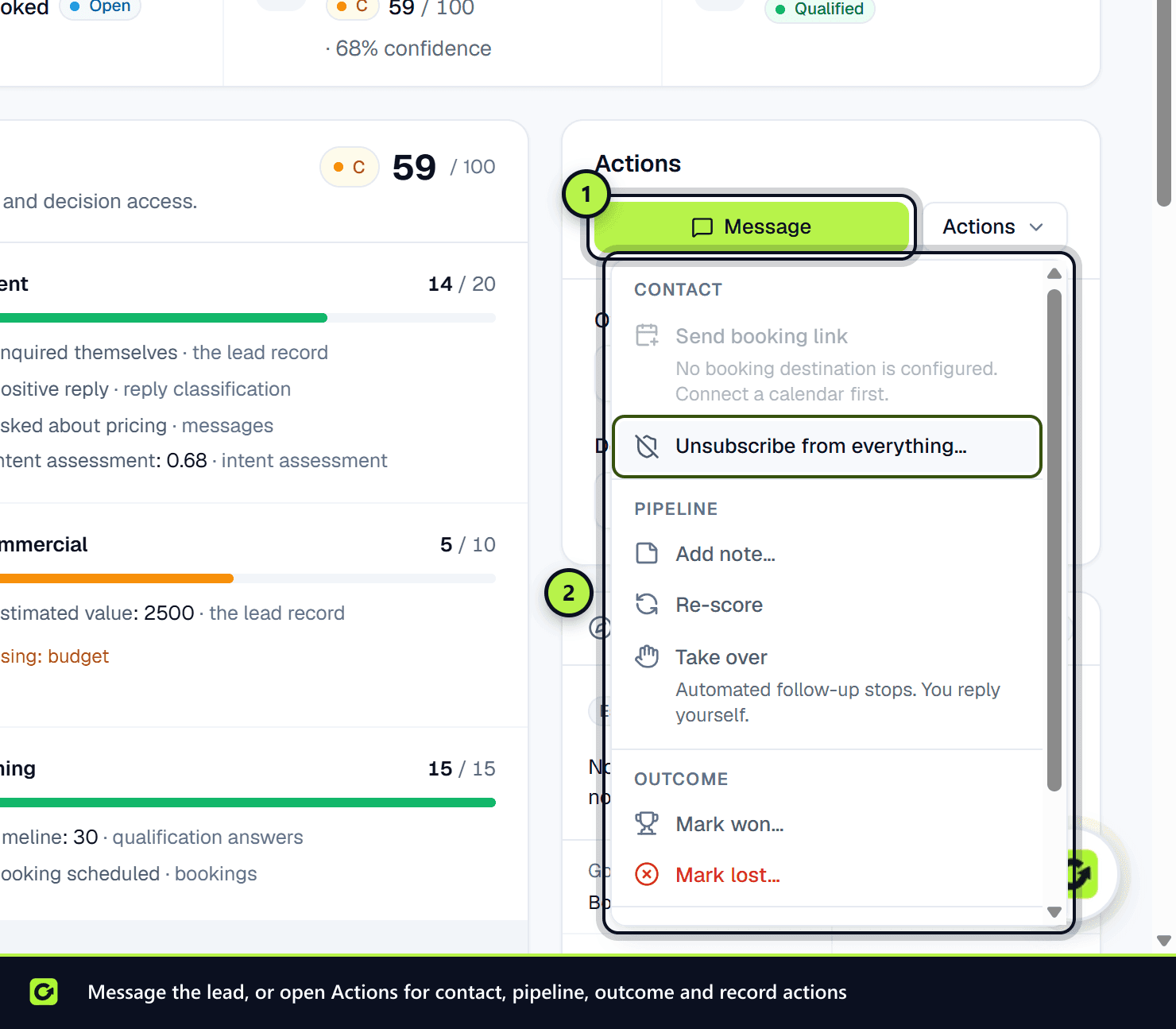
Message takes you to the composer on the Conversation tab. It is greyed out, with the reason, when no channel may be used.
Actions opens a grouped menu:
- Contact — Send booking link; Unsubscribe from everything…
- Pipeline — Add note…; Re-score; Take over (automated follow-up stops and you reply yourself) or Hand back (the assistant resumes follow-up, and each message is re-checked before it sends)
- Outcome — Mark won… or Mark lost…, each asking for a reason (with optional Reason type chips such as Price, Timing or Competitor), which is recorded on the lead's deal. See Opportunities, won and lost
- Record — Archive… (history is kept, and an owner or admin can Restore it)
Beside the menu you can change the Owner and move the Deal stage.
Options you cannot use are shown greyed out with the reason, for example because of your role or because the lead has opted out.
Related
Screenshots
Still stuck?
Customers can raise a ticket from the help button inside the app. Not a customer yet? Talk to us.