
Integrations
Connecting Google Calendar
Offer qualified leads real free times from your Google Calendar and write confirmed appointments straight into it
1 min readUpdated 26 September 2026
With Google Calendar connected, ClientTurn can offer a qualified lead times when you are actually free, and put the appointment in your calendar once they choose one.
Connect Google Calendar
- Step 1: Open Settings → Connections, find Google Calendar under Booking and choose Connect, then Connect again in the panel.
- Step 2: Sign in with the Google account whose calendar you want to use and approve access. ClientTurn needs to read your free and busy times and create events, so it asks for calendar access rather than read-only access.
- Step 3: Back in Connections, the card shows the calendar's account.
Use it for bookings
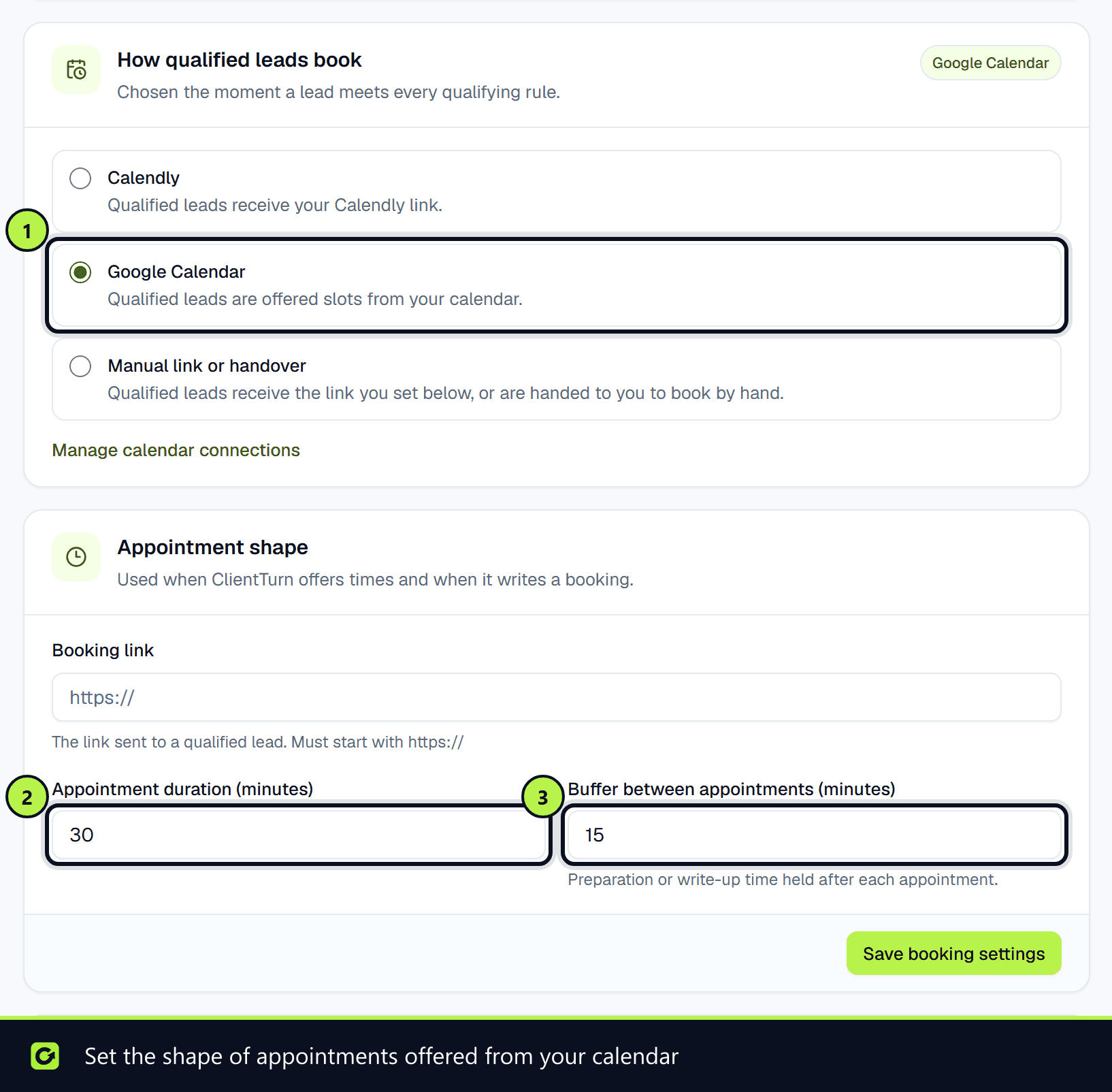
- Step 1: Open Settings → Workspace and find How qualified leads book.
- Step 2: Choose Google Calendar.
- Step 3: Under Appointment shape, set the Appointment duration (minutes) and the Buffer between appointments (minutes), which is time held after each appointment for travel or write-up.
How a booking is confirmed
- Step 1: The lead is offered times from your calendar's free slots.
- Step 2: When they pick one, ClientTurn checks again that the time is still free. If it has been taken in the meantime, the lead is offered alternatives.
- Step 3: The slot is held, and the event is created in your calendar with the lead as an attendee.
- Step 4: Only once Google confirms the event is the lead told they are booked, and reminders start.
If the event cannot be created, the lead is told the time has been requested and someone will confirm it, and the conversation is handed to your team.
Related
Screenshots
Still stuck?
Customers can raise a ticket from the help button inside the app. Not a customer yet? Talk to us.