
Integrations
Connecting HubSpot
Push qualified leads and bookings into your HubSpot CRM as contacts and deals, and optionally import HubSpot contacts back
2 min readUpdated 27 September 2026
HubSpot connects with a token you create in your own HubSpot account. There is no HubSpot sign-in redirect.
Create a HubSpot Service Key
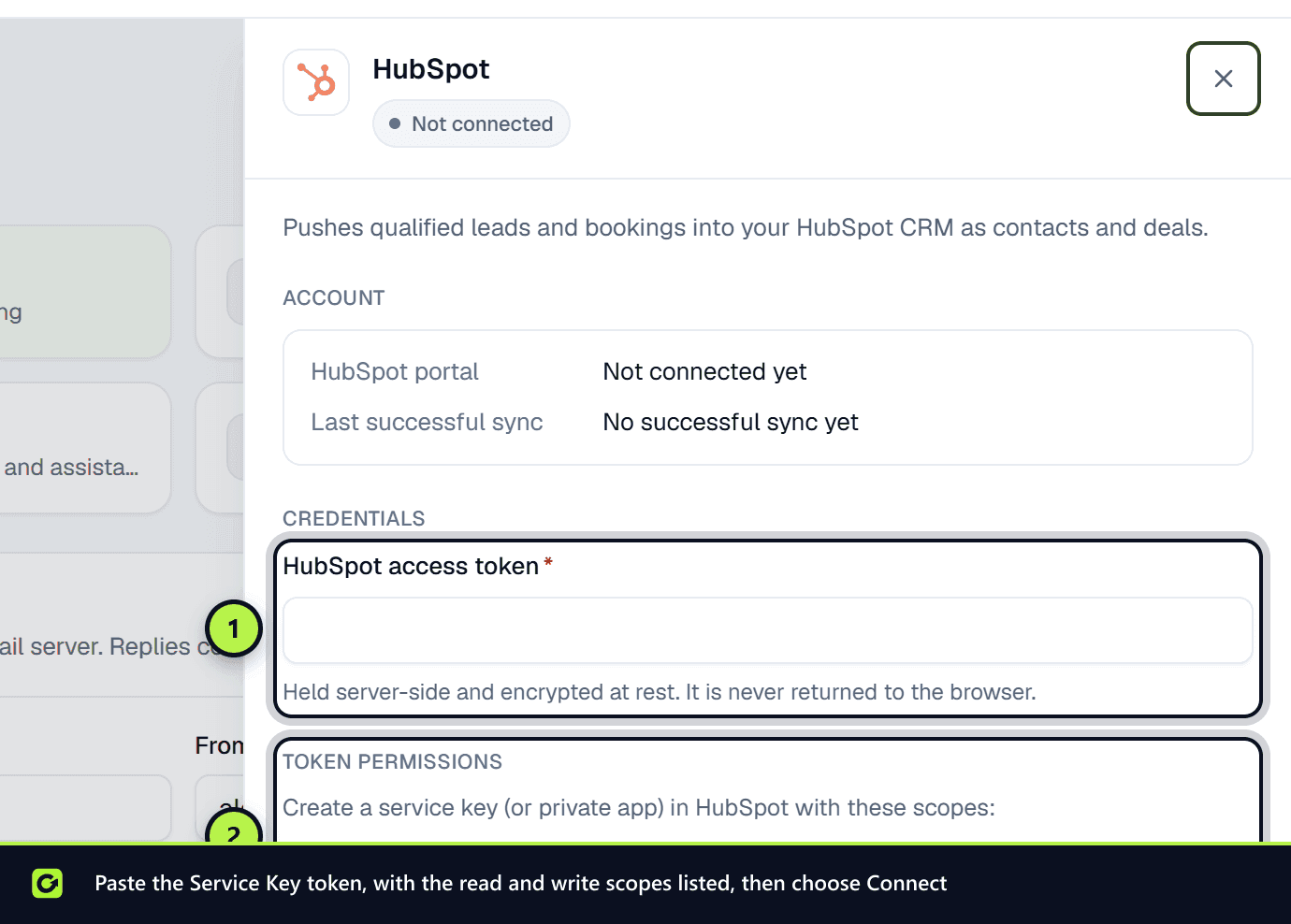
- Step 1: In ClientTurn, open Settings → Connections, find HubSpot under CRM and choose Connect.
- Step 2: In another tab, open your HubSpot account and go to Settings → Integrations → Service Keys. (HubSpot used to call these Private Apps; the menu was renamed but the token works the same way.)
- Step 3: Create a key with these scopes (the HubSpot card's panel in ClientTurn lists them too, under Token permissions):
crm.objects.contacts.readandcrm.objects.contacts.writecrm.objects.deals.readandcrm.objects.deals.write- optionally
crm.objects.owners.read, which lets imported contacts be assigned to the right person in ClientTurn
- Step 4: Copy the token HubSpot shows you once, paste it into HubSpot access token in ClientTurn, and choose Connect.
The token is checked against HubSpot straight away, including a test that the contact scopes are granted, so a typo or a missing scope is caught now rather than on the first real lead. It is stored encrypted and never shown again.
What gets pushed
A lead that reaches Qualified, Booked or Won is pushed to HubSpot as a contact (name, email, phone and postcode), with a deal created and associated with it. The deal stage follows the lead's deal in ClientTurn, including closed won and closed lost. Pushing the same lead again updates the same contact and deal rather than creating duplicates.
When a conversation is handed to a person, the lead brief is added to the contact as a note.
Import HubSpot contacts (optional)
Once connected, you can switch on Import contacts from HubSpot in Settings → Connections. New and changed HubSpot contacts are added to Leads as imported records, with no follow-up started. See Pulling leads from your CRM.
Replacing the token
Stored tokens are never shown again. To replace one, open the card's Manage panel, choose Disconnect HubSpot, then connect again with the new token. Disconnecting switches Import contacts from HubSpot off, so switch it on again afterwards if you use it. If HubSpot revokes the token, the card shows Reconnect required.
Related
Screenshots
Still stuck?
Customers can raise a ticket from the help button inside the app. Not a customer yet? Talk to us.