
Integrations
Troubleshooting integrations
What each connection status means, how to test and reconnect, and what to check when data stops flowing
2 min readUpdated 26 September 2026
Connection health
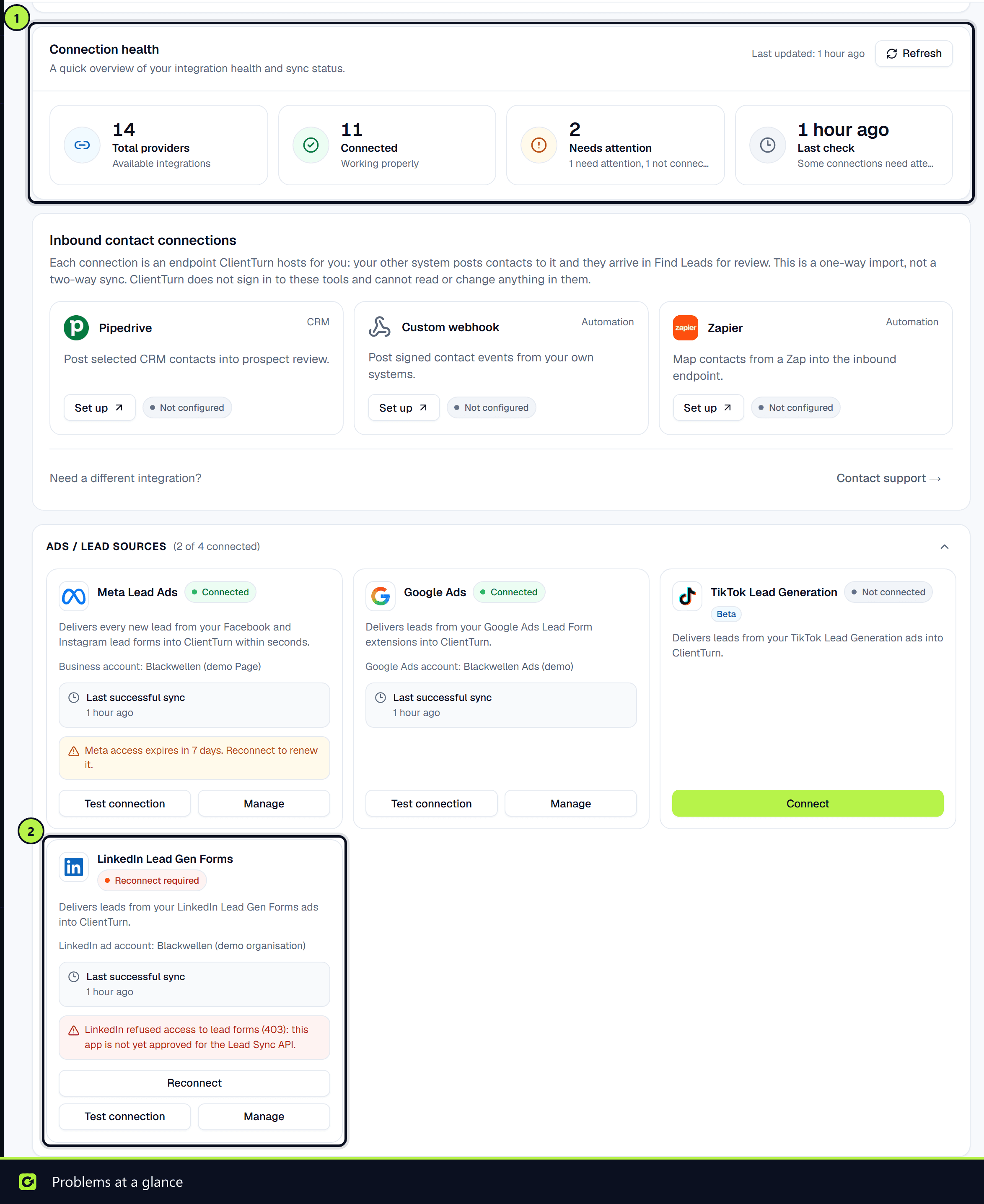
The Connection health summary at the top of Settings → Connections shows how many providers are connected, how many need attention, and when they were last checked. Each card shows its own status, its Last successful sync, and, when something is wrong, the provider's last error.
What each status means
| Status | Meaning | What to do |
|---|---|---|
| Connected | Working | Nothing |
| Healthy | Run by ClientTurn on your behalf (SMS, WhatsApp, system email) and working | Nothing to connect |
| Needs attention | Working, but recent checks had problems | Read the error on the card, then Test connection. If it persists, choose Reconnect |
| Reconnect required | The provider refused ClientTurn's access | Choose Reconnect and sign in again |
| Not connected | Available, not set up | Choose Connect |
| Not on your plan | Your plan does not include it | Compare plans |
| Not yet available | This deployment does not yet hold the credentials the connection needs | Contact support if you need it |
A card marked Beta (currently TikTok Lead Generation) works but has not yet been proven against a live account. Check that your first lead arrives.
Your mailbox card uses its own wording: Having trouble when recent sends or checks had problems, and Reconnect required when the mail server is refusing ClientTurn.
After you connect
When a sign-in connection brings you back to Settings → Connections, a message says whether it worked. That connection did not complete means nothing was connected: the sign-in was cancelled, a permission was declined or the sign-in link expired. Choose Connect again.
Test a connection
Choose Test connection on the card, or in its Manage panel. It checks the credentials only; nothing is sent to anyone.
Common causes of "Reconnect required"
- The access was revoked in the provider's own settings, or the person who connected it lost their role there.
- The provider's token expired and could not be refreshed. Salesforce sessions, for example, follow your org's session policy.
- Meta access lasts about 60 days and Meta never renews it automatically. The Meta card warns you from 10 days before it expires; reconnect before then to keep leads arriving. See Connecting Meta.
- For a token you pasted (HubSpot), the token was deleted or its scopes changed. Disconnect and connect again with a new token.
Inbound contact connections
Webhook-based connections (Zapier, Pipedrive, Custom webhook) show Configured, Healthy, Warning or Failed, based on what has actually arrived. Failed almost always means the sender's authentication does not match what you chose, or the body is missing eventId or a valid email or +-prefixed phone. See Leads from Zapier and webhooks.
Who can fix it
Everyone can see connection status. Only owners and admins can connect, test, reconnect or disconnect.
Wider outages
If a provider is having a wider incident, it shows under System Status in the support panel (the round help button at the bottom right of every page).
Related
Screenshots
Still stuck?
Customers can raise a ticket from the help button inside the app. Not a customer yet? Talk to us.