
Booking and sales
Direct close with checkout links
Let the assistant send a lead one of your own approved checkout links, with your exact price wording, when they are ready to buy, and the limits that keep it safe
2 min readUpdated 27 September 2026
For businesses that sell without a call, such as self-serve SaaS or ecommerce, the assistant can close the sale by sending a checkout link. It is off until you turn it on, and even then it can only send links you have approved, with the price wording you wrote.
The same approved links can also be chosen on a catalogue item, as the pay step straight after a customer accepts a quote. The Pay now button on invoices is set up separately, in Settings → Quotes & invoices → How invoices are paid. See Invoices.
What you need
- A sales motion that closes without a person: self-serve, ecommerce or direct B2B. Set it under How you sell in Settings → AI & selling → Sales behaviour. On any other motion the assistant will not send a checkout link, because your sale closes through a person.
- Checkout pages you already use, for example a Stripe Payment Link or your shop's product page. ClientTurn does not take payments itself.
- The conversation assistant switched on. See Setting up AI agents.
Turn it on
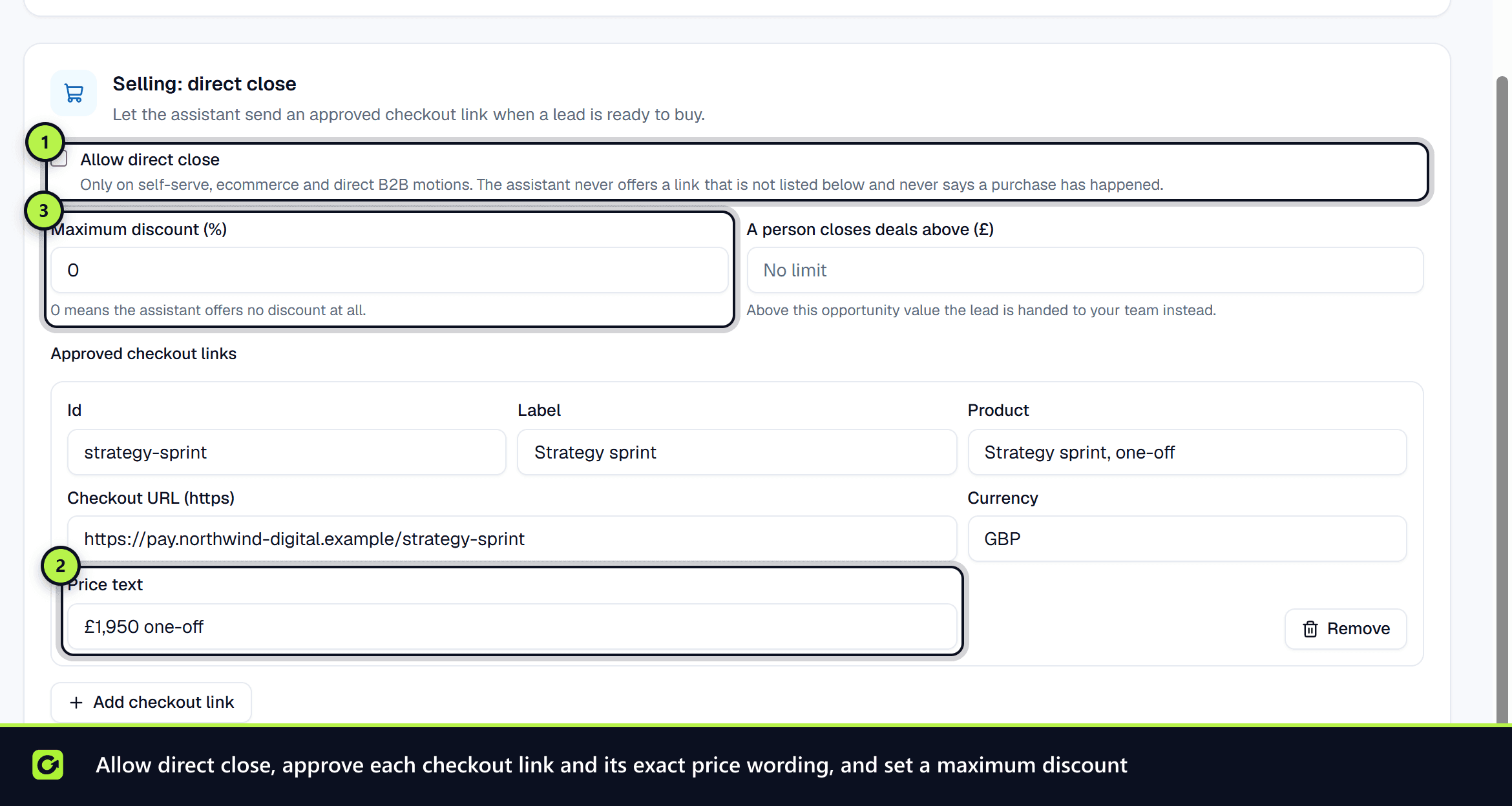
- Step 1: Open Settings → Business Profile and scroll to Selling: direct close.
- Step 2: Choose Add checkout link and fill in:
- Id: a short name the assistant refers to, in lower-case letters, numbers,
-or_. - Label and Product.
- Checkout URL (https).
- Price text: exactly the price wording the assistant may repeat, for example "£49 per month".
- Currency: a three-letter code such as GBP.
- Id: a short name the assistant refers to, in lower-case letters, numbers,
- Step 3: Set Maximum discount (%). Leave it at 0 for no discounts.
- Step 4: Optionally set A person closes deals above (£). Above that opportunity value, the lead is handed to your team instead.
- Step 5: Tick Allow direct close. You need at least one link first.
- Step 6: Choose Save selling settings.
You can add up to 25 links. Only owners and admins can change these settings.
What the assistant can and cannot do
- It chooses a link only from your approved list. The link is added to the message by ClientTurn, character for character, so the assistant cannot alter it.
- It may only repeat your Price text. It never invents a price.
- Any discount in its message is checked against your Maximum discount (%). A discount above it, or a vague one such as "money off" with no figure, is rejected before sending.
- It never says a purchase has happened. A sale is recorded only when your Stripe account, your order webhook, your CRM or your team confirms it. See Payment confirmation and the thank-you and Abandoned checkout follow-up.
- It does not send a link to someone who cannot be messaged on that channel.
When a link is sent, the lead's opportunity moves to the checkout-sent stage. See Opportunities, won and lost.
Related
Screenshots
Still stuck?
Customers can raise a ticket from the help button inside the app. Not a customer yet? Talk to us.