
Finding leads
Getting leads from Meta Lead Ads
Bring Facebook and Instagram lead-form submissions into ClientTurn within seconds, and start follow-up automatically
2 min readUpdated 26 September 2026
When someone submits a lead form on one of your Facebook or Instagram ads, Meta notifies ClientTurn straight away and the lead appears in Leads. Follow-up starts on its own, using your published follow-up sequence.
Before you start
- You need to be an owner or admin in ClientTurn to connect Meta.
- In Meta, you need admin access to the Facebook Page the lead forms belong to. Instagram lead ads are delivered through the same Page, so there is nothing separate to connect for Instagram.
Connect Meta
- Step 1: Open Settings → Connections and find Meta Lead Ads under Ads / lead sources.
- Step 2: Choose Connect, then Connect again in the panel that opens.
- Step 3: Meta asks you to sign in, choose the Pages to share, and approve the permissions. Approve them all: ClientTurn needs to list your Pages, read lead-form submissions, and subscribe the Page to lead notifications.
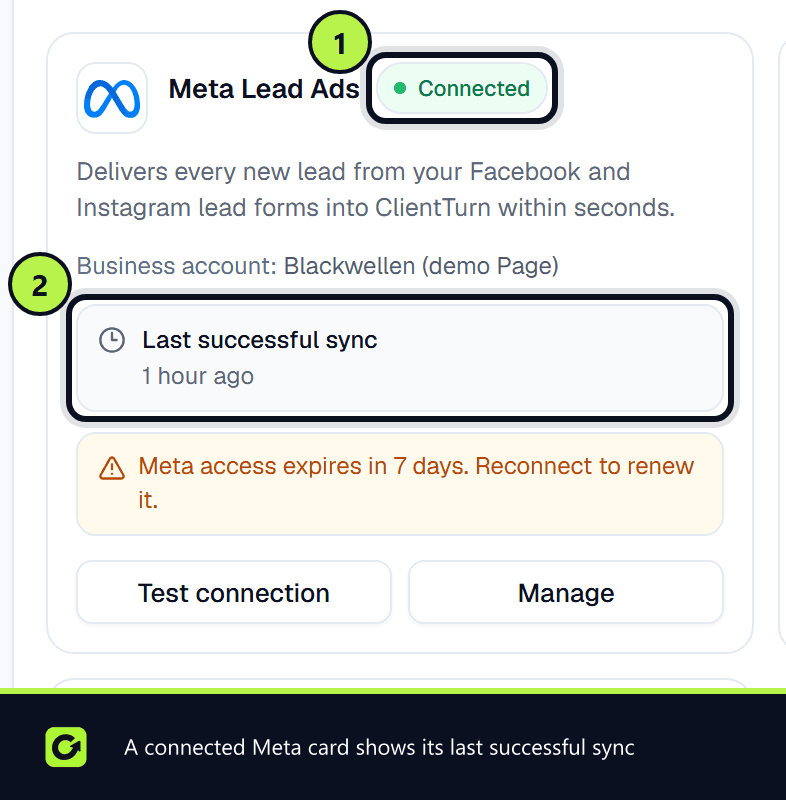
- Step 4: You are brought back to Connections, and the card shows Connected with the account name.
For the full connection guide, see Connecting Meta.
Which forms are read
ClientTurn receives leads for one Page, and reads every lead form on it. When you connect, it picks a Page you manage, preferring one linked to Instagram. To use a different Page, open the Meta Lead Ads card's Manage panel, choose Load my Pages, pick the Page and choose Use this Page. See Connecting Meta.
On the first check after connecting, ClientTurn looks back over the previous seven days, so recent submissions are not lost.
How fast leads arrive
Meta sends a notification the moment a form is submitted, and ClientTurn fetches the lead from it. As a safety net, ClientTurn also checks your forms every few minutes, so a notification Meta failed to deliver is still picked up. Both routes recognise Meta's own lead ID, so a lead is never created twice.
Speed-to-lead is measured from the time the person submitted the form, not from when ClientTurn received it.
What happens to each lead
- Step 1: The lead goes through the same intake checks as every source: a usable email or phone, suppression, and a check for the same person already in your workspace. See Lead sources explained.
- Step 2: The Page, form, campaign, ad set and ad are recorded against the lead, so Analytics and the lead's Attribution tab can show where it came from.
- Step 3: A brand-new lead is qualified and enters your follow-up sequence. A person who was already a lead is matched and updated, and their existing follow-up is not restarted.
If leads stop arriving
- Check the Meta Lead Ads card in Settings → Connections. Reconnect required usually means Meta revoked access, for example after a password change or when someone removed the app in Meta's business settings. Choose Reconnect.
- Use Test connection on the card to confirm ClientTurn can still reach Meta.
- If your plan's lead limit has been reached, new leads are still saved but are not contacted. You get a notification when this happens.
Related
Screenshots
Still stuck?
Customers can raise a ticket from the help button inside the app. Not a customer yet? Talk to us.