
Integrations
Connecting Google Ads
Connect your Google Ads account so lead-form submissions are collected automatically, and how the optional webhook fits in
1 min readUpdated 26 September 2026
Connect
- Step 1: Open Settings → Connections, find Google Ads under Ads / lead sources and choose Connect, then Connect again in the panel. Only owners and admins can connect.
- Step 2: Sign in with a Google account that has access to your Google Ads account, and approve access.
- Step 3: Back in Connections, a message confirms Google Ads connected, and the card shows Connected.
From then on ClientTurn checks your lead forms for new submissions every few minutes.
Choosing the account
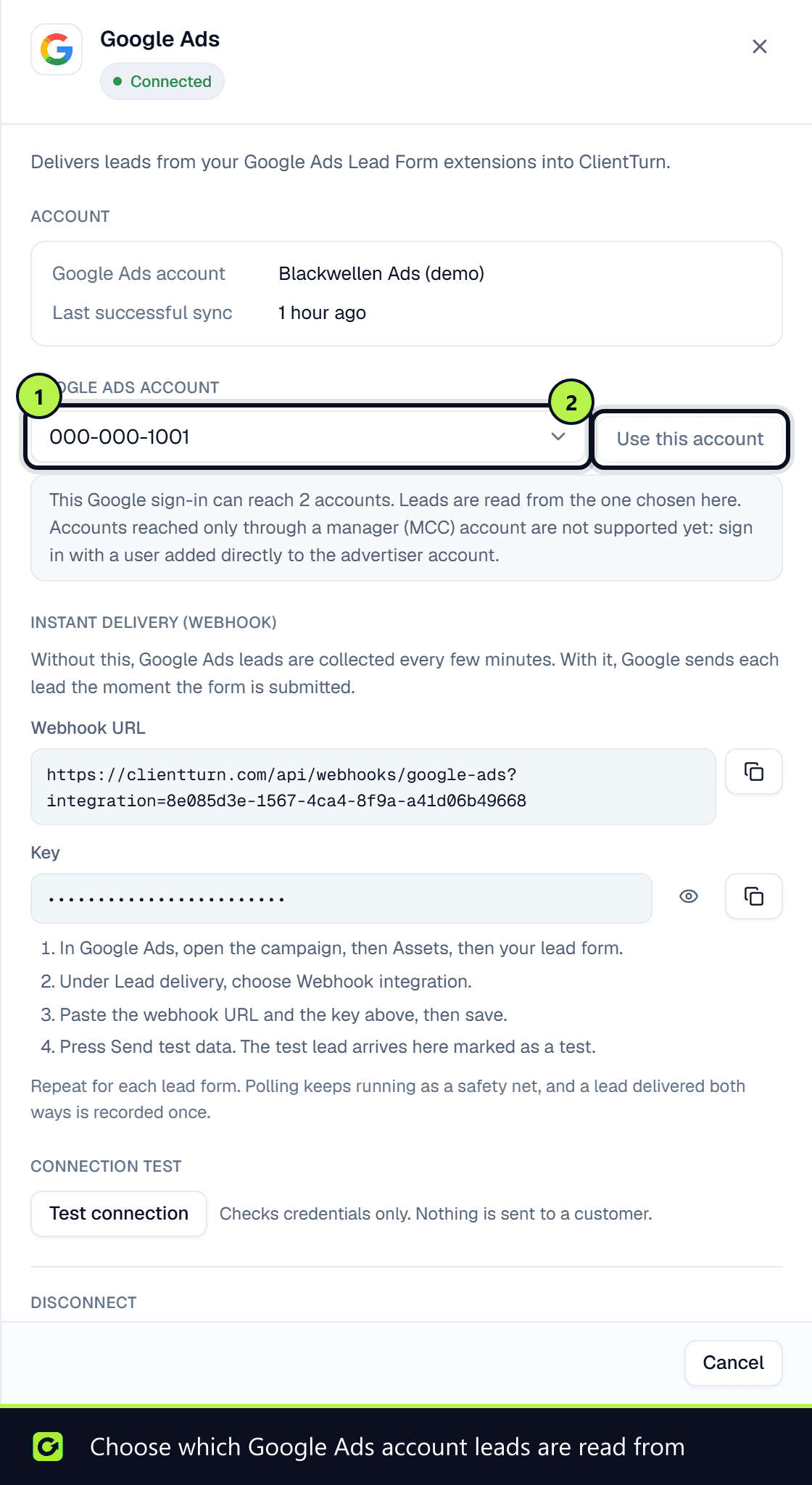
The card's Manage panel shows the Google Ads account leads are read from, under Google Ads account. If your Google sign-in can reach more than one account, owners and admins can pick another from the list and choose Use this account. If it reaches only one, reconnect with the Google sign-in that owns the account you want.
Instant delivery (webhook)
Connecting also creates the secret key your workspace uses for Google's lead-form webhook, which delivers each submission instantly. The Manage panel shows the Webhook URL and, to owners and admins, the Key, each with a copy button, plus the steps for pasting them into your lead form. See Getting leads from Google Ads lead forms.
Disconnecting
In the card's Manage panel, choose Disconnect Google Ads. New leads from your Google Ads lead forms stop arriving. Leads already in ClientTurn keep their follow-up.
Reconnect required
If Google refuses ClientTurn's access, for example because it was revoked in your Google account's security settings, the card shows Reconnect required with Google's reason. Choose Reconnect.
Related
Screenshots
Still stuck?
Customers can raise a ticket from the help button inside the app. Not a customer yet? Talk to us.