
Reactivation
Reactivation overview
Win back old leads with a one-off campaign by SMS, WhatsApp or email, from your existing leads or an imported list, with an optional follow-up and every safety check re-run before each message
4 min readUpdated 27 September 2026
A reactivation campaign sends one message, and optionally one follow-up, to leads who went quiet, to get the conversation going again. When someone replies, the conversation carries on like any other lead: qualification, the assistant if you use it, and booking.
Who can use it
- Reactivation is on every paid plan. It is not included during the free trial. See Plans and what each includes.
- Each plan includes a number of reactivation contacts per billing period. A contact counts once per campaign, when it joins that campaign's audience. A launch that would go past what is left is refused, with the number left and what you can do: narrow the audience, wait for the next billing period, or upgrade.
- Only owners and admins can create or launch a campaign. Everyone else can see the campaigns and their results.
Create a campaign
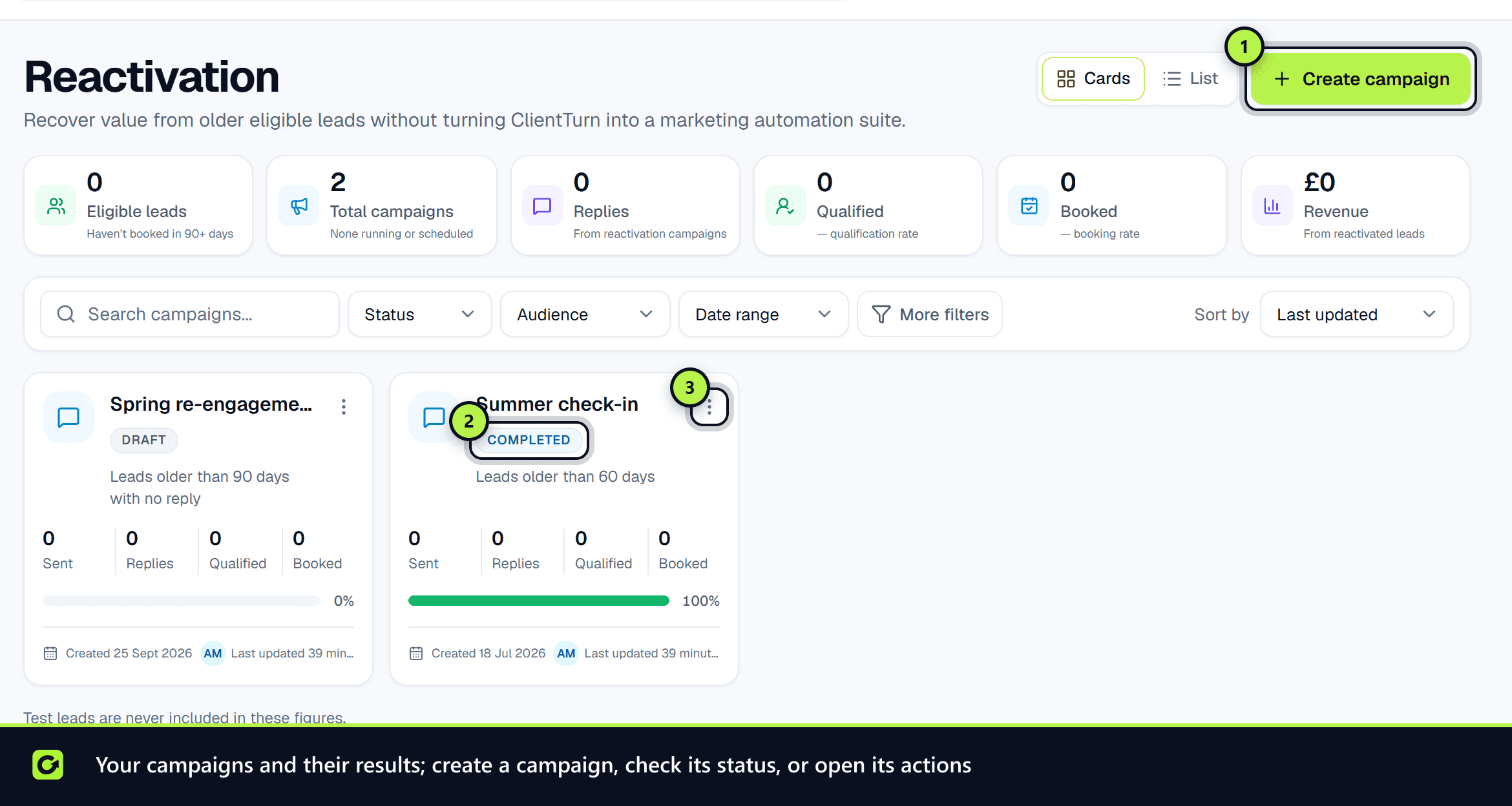
- Step 1: Open Reactivation and choose Create campaign.
- Step 2: Choose who to reach. Name the campaign, then pick the Audience source: Existing ClientTurn leads with filters, or Import from CSV. The Audience estimate shows how many would be contacted and how many are excluded, and why. Choose Continue to Message & Timing.
- Step 3: Create your outreach. Pick the channel (SMS, WhatsApp or email), write the Initial message, and optionally add one follow-up. Choose Send immediately or a date and time. Choose Continue to Review & Launch.
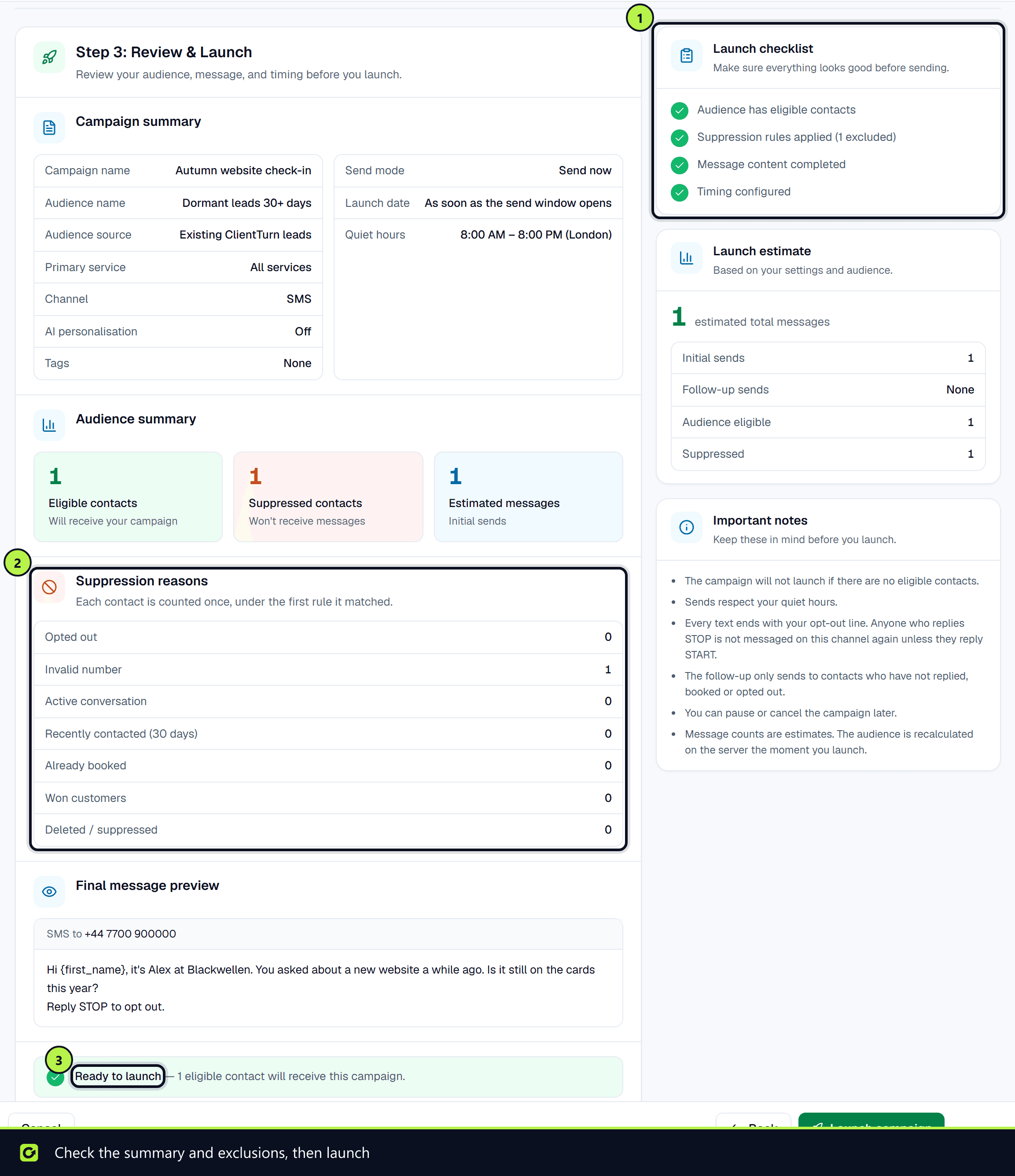
- Step 4: Confirm and send. Check the Launch checklist, Campaign summary and Final message preview, then choose Launch campaign.
Sending starts in the next permitted window, or at your scheduled time inside it.
The message
- Use variables such as
{{first_name}},{{business_name}}and{{service_name}}with Insert variable. A message is not sent with an empty variable in place of a name. - SMS and WhatsApp messages can be up to 640 characters. Your opt-out line is added automatically, unless the message already mentions STOP.
- Email is sent from your own connected mailbox, so replies come to your inbox. It carries an unsubscribe link.
- Personalise each message with AI is off by default. It rewrites SMS and WhatsApp messages for each lead. A rewrite that fails your style checks, is too long, or would go over your AI credit limits is not used, and that lead gets your message exactly as written. Email is never personalised.
The follow-up
Tick Enable one follow-up message to send one more message, on the same channel, 1, 2, 3, 5, 7 or 14 days later (3 by default). Only one follow-up is allowed. Anyone who has replied, booked or opted out by then does not get it.
Channel and timing
An SMS campaign is cost-aware by default: a lead who has never replied gets the message by email from your connected mailbox when they have an address, which uses no SMS credit, and everyone else gets SMS. Turn off Email first for leads who have not engaged to text everyone.
Send at each lead's best time is on by default: each lead gets the message at the hour they have replied in before, or your leads' most common reply hour, or Tuesday to Thursday at 10am, within two weeks. Turn it off to send as soon as possible.
Every campaign message also counts towards the contact limits that apply across all automated messages. See Re-engagement check-ins, no-shows and win-back.
A/B test a message
While a campaign is a draft, an owner or admin can add a test from the campaign's Results tab: write a variant message and choose a holdout (a share of the audience that is not messaged at all). Start the test before launching. Each lead is assigned to one version and stays in it. Results show, per version, meetings, sales, opt-outs, then replies. Until every version has reached 100 leads the result says not enough data. Nothing changes automatically: if a variant wins, edit the campaign yourself.
Before every message
Each message is checked again at the moment it is sent: opt-outs and suppression, quiet hours, consent and contact rules, and your usage limits. See Who reactivation will not contact.
Managing a campaign
From a campaign's actions menu:
- View details and Edit.
- Launch, for a draft or scheduled campaign.
- Pause: nothing more is sent until you resume.
- Resume: sending continues from where it stopped, to every contact now due, working through the list in batches a minute apart. Anyone who opted out, replied or booked in the meantime is dropped.
- Cancel campaign: every contact still waiting is stopped for good. Messages already sent and results are kept.
- Duplicate a campaign to reuse its setup.
- Delete draft: only for drafts. A campaign that has sent anything must be cancelled instead, so its results survive.
Open a campaign to see its results: messages sent and failed, replies, qualified and booked leads, their rates, and revenue.
Guides
- Reactivating existing leads
- Reactivating a CSV list
- SMS reactivation
- WhatsApp templates for reactivation
- Who reactivation will not contact
- Re-engagement check-ins, no-shows and win-back
Screenshots
Still stuck?
Customers can raise a ticket from the help button inside the app. Not a customer yet? Talk to us.