
Settings
Workspace settings
Your business identity, services, hours, messaging behaviour, booking method, meeting types and the AI assistant, plus exporting or deleting the workspace
4 min readUpdated 27 September 2026
Settings → Workspace is the first Settings section, and where Settings opens if no section is chosen. It holds the basics of how your business appears and behaves. Owners and admins can change it. Members and viewers see it read-only.
Business identity
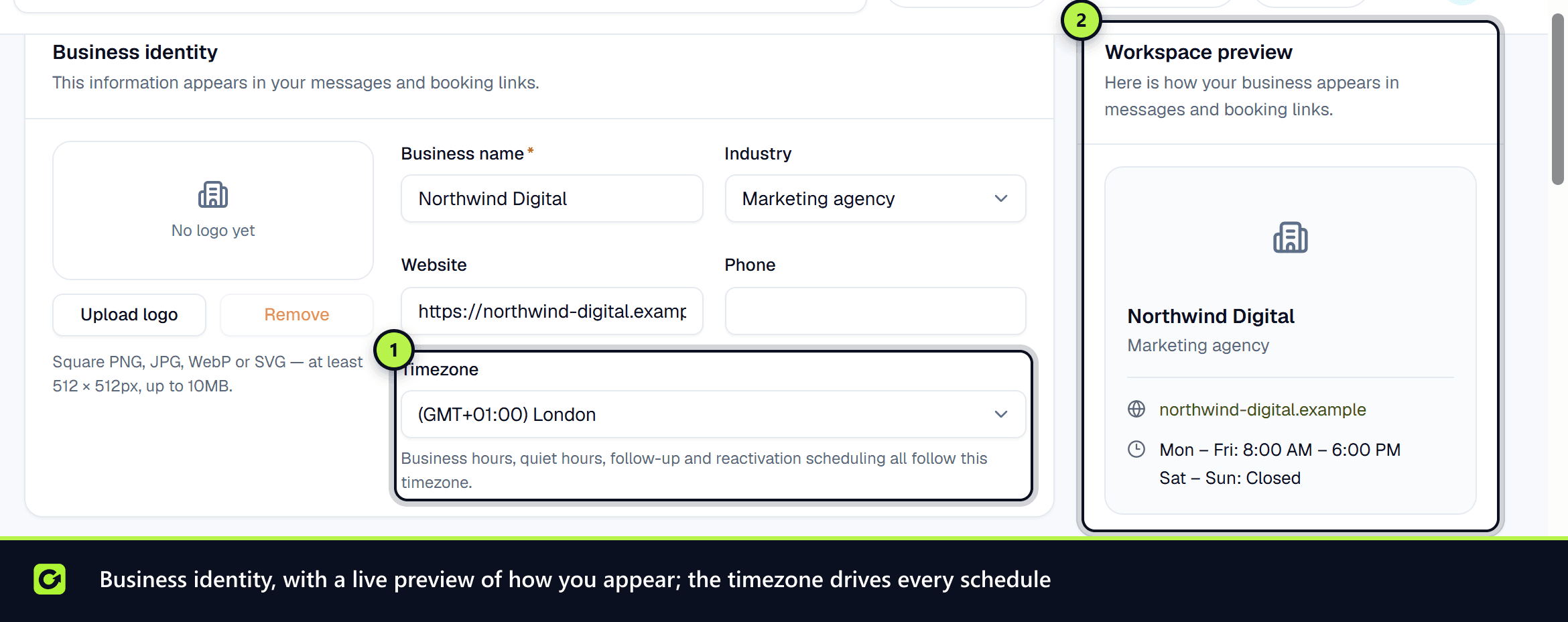
Business name, Industry, Website, Phone, Timezone and your logo. They appear in your messages and booking links, and the Workspace preview alongside shows how.
The Timezone list holds every time zone, with Europe/London first.
Changes to these fields are saved with Save changes in the bar that appears at the bottom of the page.
Services
The Services table lists what you sell. ClientTurn cannot qualify a lead until it knows at least one service. Choose Add service and fill in:
- Name
- Description (optional)
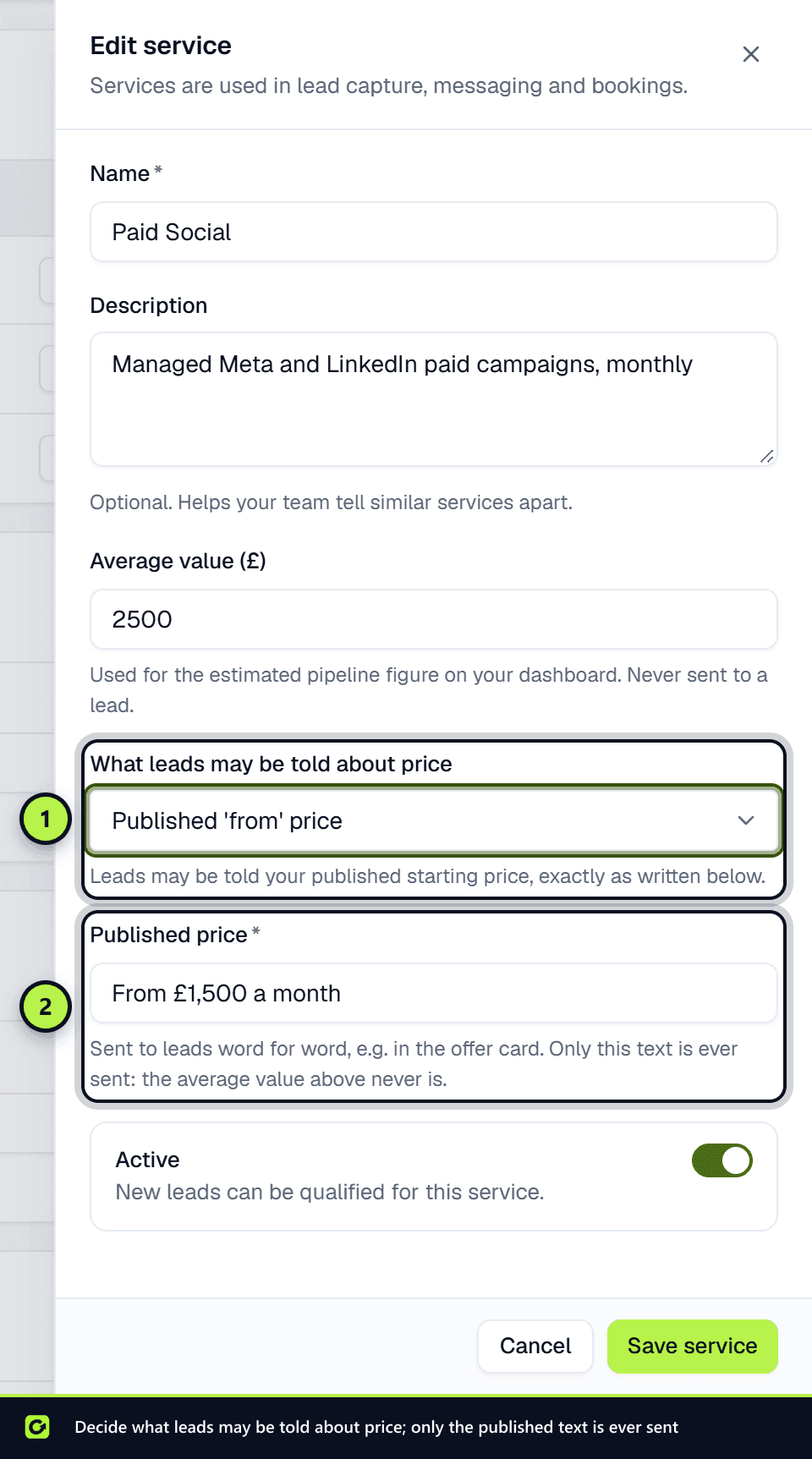
- Average value (£), used only for the estimated pipeline figure on your Dashboard. It is never sent to a lead.
- What leads may be told about price:
- Quote required: leads are told the price depends on the scope and is quoted by your team.
- Published 'from' price or Published fixed price: leads may be told your Published price, which you type in (for example "From £1,500"). It is sent word for word, and it is the only price text ever sent.
- Never discuss price: price is never mentioned, and any price question goes to your team.
- Service is active
Then choose Save service.
Business hours and service area
Business hours sets when you are available for calls, bookings and follow-ups. Service area describes where you work.
Messaging
- Channels: the Default channel used to reach a new lead, and a Fallback channel for when the default cannot deliver.
- Sender identity: a Message signature added to outbound messages so the lead knows who is writing. Up to 160 characters. Keep it short, because it counts towards every SMS.
- Quiet hours: tick Hold messages during quiet hours and set Quiet from and Quiet until, in your timezone. Nothing automated is sent in between, and the check is repeated just before each send.
- Opt-out wording: fixed and cannot be edited or switched off. See Suppression, STOP and unsubscribe.
- Follow-up cadence lives with your sequence in Follow-Up.
Choose Save messaging settings.
Slack alerts
Enter a Slack channel ID to send new-lead, handover, booking and warm-prospect alerts there, then choose Save Slack channel. Invite the ClientTurn bot to the channel first (type /invite @ClientTurn in it), or the alerts fail. Under What goes to Slack, untick any alert type the channel does not need, then choose Save Slack alert settings.
Booking
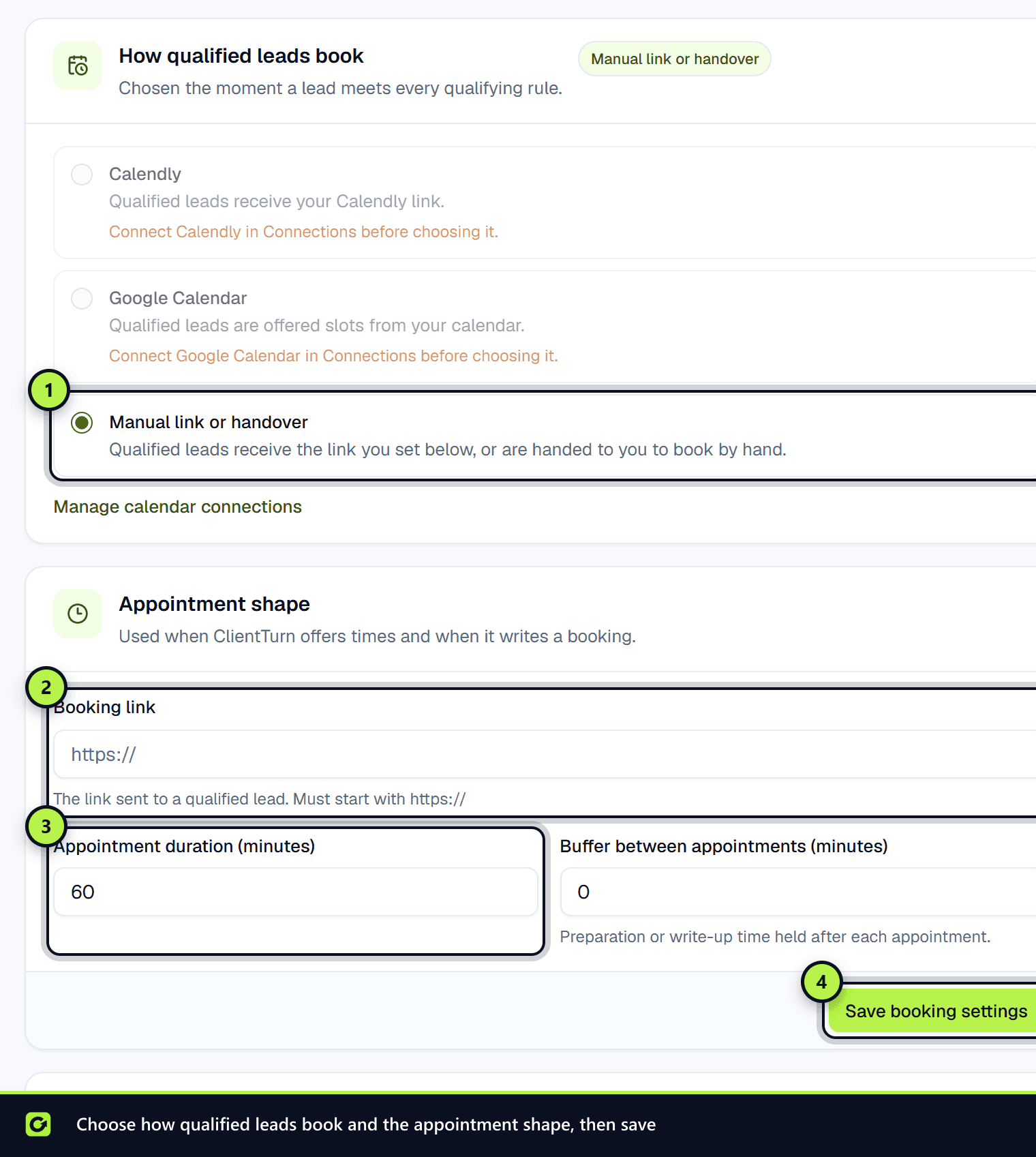
- How qualified leads book: Calendly, Google Calendar, or Manual link or handover. The method is used the moment a lead meets every qualifying rule.
- Calendly event type: shown when you choose Calendly and it is connected. Paste the address of the event type the assistant offers times from (open it in Calendly; it looks like
calendly.com/event_types/…). Without one, the assistant sends your booking link or hands over to a person. - Booking link: for the manual method, the link a qualified lead is sent. It must start with
https://. - Appointment shape: Appointment duration (minutes) and Buffer between appointments (minutes).
Choose Save booking settings. See Booking with Google Calendar, Booking with Calendly and Manual bookings and confirmation.
Meeting types sits under the booking settings. See Meeting types and routing.
AI assistant
The AI assistant card turns the conversation assistant on and sets what it may do:
- Use AI in this workspace: turning this off stops the assistant and all AI wording immediately.
- The mode: Off, Suggest replies (drafts are held until someone approves them), or Reply automatically.
- Channels: SMS, WhatsApp and email. WhatsApp is a paid add-on on Growth and above, and email needs a connected mailbox.
- What the assistant may do and When to involve a person, including Hand over when qualification needs review (off by default: a lead your rules mark Review is flagged for your team while the assistant keeps the conversation going) and an optional Extra handover rule.
- Tone and reply length.
Choose Save assistant settings. If your plan does not include the assistant, the card says so. See Setting up AI agents.
Exporting or deleting the workspace
Only the owner sees these, at the bottom of the page:
- Export data downloads a JSON file with your business details, services, team, leads, conversations and bookings.
- Delete workspace permanently deletes every lead, conversation, booking and report, removes all connections, removes everyone's access and cancels the subscription. You must type the workspace name to confirm. There is no undo and no recovery from a backup.
Related
Screenshots
Still stuck?
Customers can raise a ticket from the help button inside the app. Not a customer yet? Talk to us.