
Settings
AI & selling settings
Set how much the assistant researches and how readily it asks leads to clarify, cap what AI may cost, choose your business type and qualification depth, and set brand rules and legitimate interests assessments
7 min readUpdated 30 September 2026
Settings → AI & selling controls how the assistant sells and how much it may spend. Owners and admins can change it. Everyone else sees the same settings read-only.
Whatever you choose here, the hard rules always apply: suppression and opt-outs, quiet hours, review decisions made by your rules, and the assistant never quoting a price, a promise or availability it was not given.
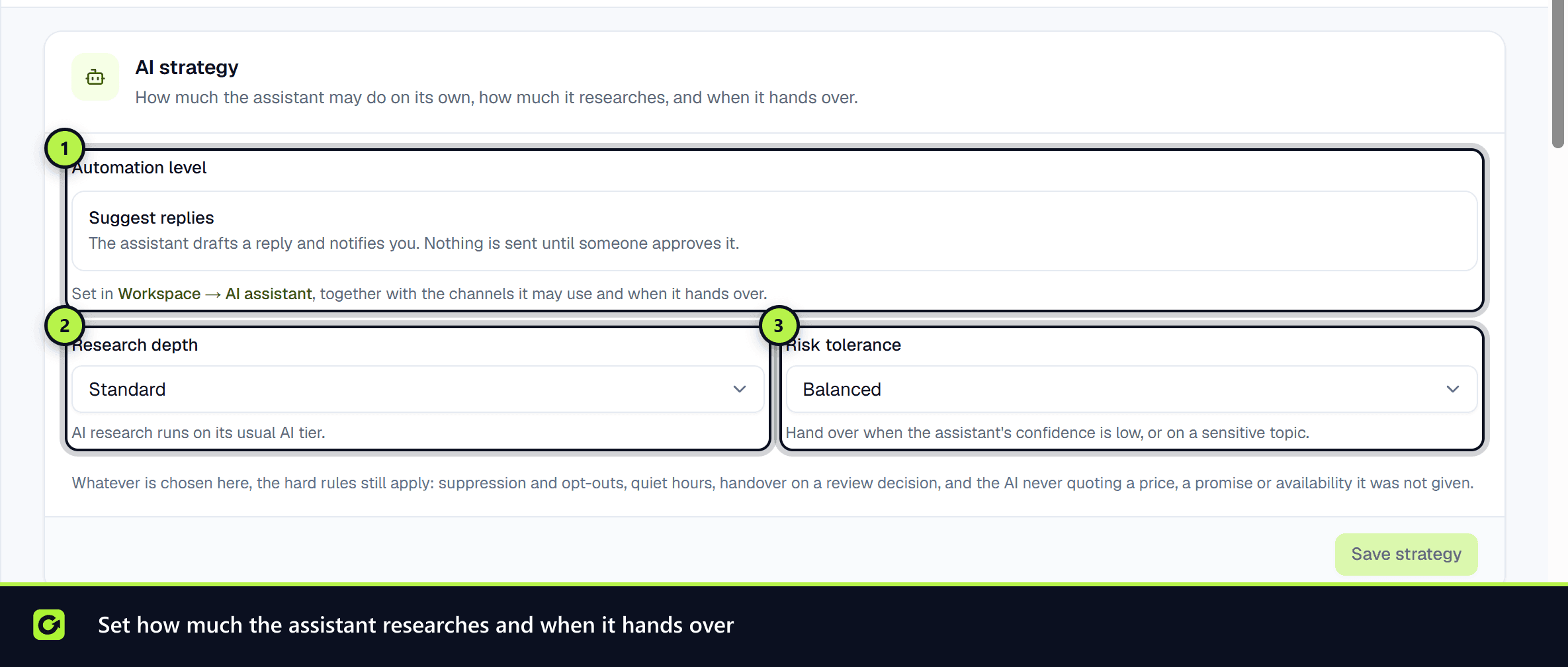
AI strategy
- Automation level is shown here for reference. You change it, with the channels and handover rules, in Settings → Workspace → AI assistant. See Workspace settings.
- Research depth: Light runs AI research (search planning, research summaries, reading company websites) on the cheapest AI tier allowed. Standard uses its usual tier. Deep may use one tier higher, only when your AI credit limits and the lead's value allow it.
- Risk tolerance: Cautious asks the lead to clarify whenever the assistant is not clearly confident it read the reply correctly. Balanced (the default) asks the lead to clarify when a reply is unclear, and passes the conversation to a person only as a last resort. Assertive keeps the same safety floor as Balanced: it never acts on a reply it could not read, and the hard rules still hand over. Confidence alone never hands a conversation over: after two unclear replies on the same point, a person takes it. See The handoff brief.
Choose Save strategy.
What the AI may do
Switches for what the assistant may do without a person. Everything starts off except Qualify leads and Book meetings, so turn on only what you want it to do on its own.
| Switch | What it lets the assistant do |
|---|---|
| Qualify leads | Ask your qualification questions and record the answers. Always on while the assistant is on |
| Book meetings | Offer real times from your calendar and book the one the lead picks. Off: a colleague arranges the time |
| Draft quotes | Build a quote from your catalogue when a lead asks for a price |
| Send quotes | Send a drafted quote to the lead. Off: a colleague sends it. Needs Draft quotes |
| Offer discounts | Take money off a quote within the limits below. Needs Draft quotes |
| Ask for a signature | Point a lead who accepted a quote to the signature step. Needs Send quotes |
| Send payment links | Point a lead to the payment step after signing. Needs Send quotes |
Phone leads, Transfer live calls to a person, Raise invoices and Mark deals won are set in their own settings, so they show here as read-only. A deal is marked won when a payment is confirmed.
When you turn on Offer discounts, set its limits:
- When it may offer one: only after the lead objects on price, or unprompted when they ask.
- Most it may take off, as a percentage and, if you like, in pounds.
Choose More limits for the first, smaller concession, the lowest margin to keep, and when a person must approve: a discount above a percentage or an amount, or any quote above a value. You also choose who approves: an owner or admin, or only the owner.
The assistant never works out a price itself. Every figure it gives comes from your catalogue, and your discount rules decide every discount. See Quotes from your catalogue.
AI quoting is included on every paid plan with AI assist. If it isn't on yours, the card says so. Choose Save permissions.
AI credits
AI use is counted in AI credits, ClientTurn's own unit. The card shows the credits used this period out of what you have (included plus top-ups) and the percentage, your plan's included credits and renewal date, and your top-up balance. It warns at 80% and 95%, and says when credits are used up.
Beneath are your own limits, in AI credits. When a limit is reached, the AI step is skipped or handed to a person. Nothing is sent that would not have been sent anyway.
| Limit | What it caps |
|---|---|
| Workspace monthly limit | AI credits this workspace may use in a calendar month. Your plan's allowance still applies |
| Per lead | AI credits one lead may use over its lifetime |
| Before a reply | AI credits a lead may use before it has replied. Kept low on purpose |
| Per opportunity | AI credits a lead may use once it is an opportunity |
Each limit shows its default. You can lower a limit but not raise it above the default, and Before a reply cannot be more than Per lead. Clearing a limit puts the default back. Choose Save limits.
To buy more AI credits, see Top-up credits and Usage and limits.
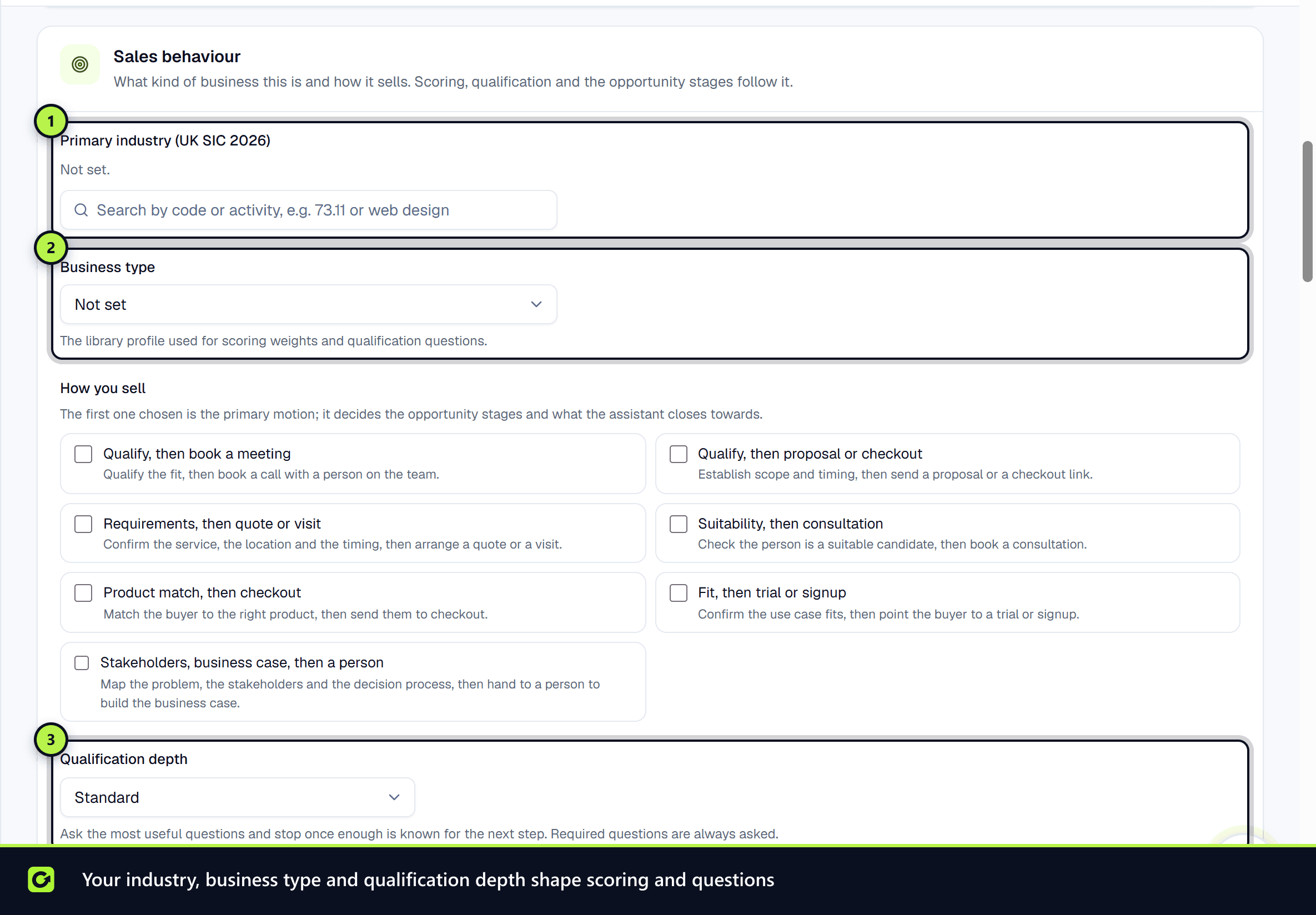
Sales behaviour
What kind of business this is and how it sells. Lead scoring, qualification and the opportunity stages follow it.
- Primary industry (UK SIC 2026): search by code or activity, for example
73.11or "web design". - Business type: the library profile used for scoring weights and qualification questions. See Industry scoring and archetypes.
- How you sell: your sales motions. See Sales motions and close targets.
- Qualification depth: Light asks only the questions that unlock the next step, Standard asks the most useful questions and stops once enough is known, Thorough asks every configured question that applies. Required questions are always asked. See How qualification works.
- Preferred methods: the sales methods you would like the assistant to favour. See Sales methods explained.
Choose Save sales behaviour.
Brand
How your business sounds.
- Forbidden phrases: one per line, 3 to 60 characters each. Every draft the assistant writes is checked, and a draft using one is rejected and rewritten before anything is sent.
- Good example messages: messages that sound like you. The assistant sees them as tone examples only, never as facts to repeat.
- Bad example messages: messages that do not sound like you.
You can add up to five examples of each. Choose Save brand.
Objections
The objections your business hears most and your own best answers. The assistant uses them before its general playbook, may put them in its own words, and never adds to them.
- Step 1: Choose Add an objection. Pick A common objection to refine one (such as price or timing), or One only we hear and give it a name.
- Step 2: Under How leads say it, add the phrases leads use, one per line. One is required for an objection only you hear.
- Step 3: Write Your best answer. Only what you can stand behind. Emojis, dashes and deadline or pressure wording are refused when you save.
- Step 4: Tick any Reassurance to lean on, and choose Save objection.
Under Reassurance you stand behind, add service levels, guarantees, case studies, testimonials you own and response-time commitments. The assistant quotes them as written, or not at all.
Try it runs a message through the same matching, plan and checks the assistant uses and shows an example reply. It uses no AI credits. See Objection handling.
Competitors
The competitors your leads mention, what you can factually say about them, and what never to say.
- Step 1: Choose Add a competitor and give its Name. Under Also known as, add other names leads use, comma separated.
- Step 2: Under Approved comparison points, add factual, verifiable points that name the competitor, one per line (for example "Unlike Acme, onboarding is included in every plan.").
- Step 3: Under Never say, add lines the assistant must never use, one per line.
- Step 4: Choose Save competitor. Switch off Use this competitor to keep it without using it.
When a lead names a competitor, the assistant may use an approved point word for word and nothing else. Every reply is checked before it is sent: a put-down, an unapproved claim about a competitor or a Never say line is refused.
Channels
Links to where channel settings live (Workspace for messaging, quiet hours and the assistant's channels; Connections for senders and mailboxes), and Email send caps today for each sender.
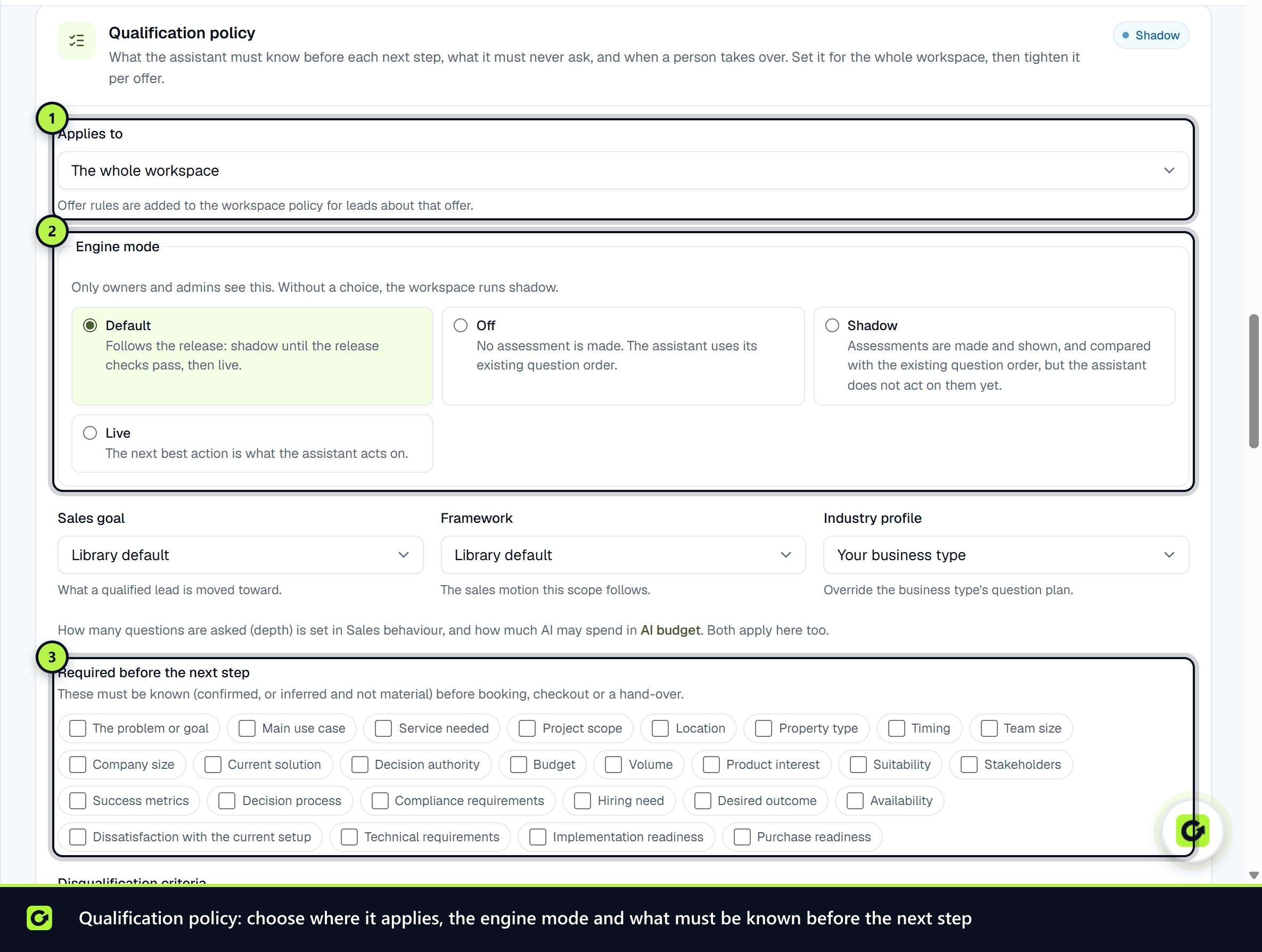
Compliance
Record the legitimate interests assessments behind contacting people who have not given consent. Each assessment records the three ICO tests: Purpose, Necessity and Balancing test, with optional Safeguards and a Next review date. Its Status can be Draft, Active or Withdrawn. Choose Save assessment.
Related
Screenshots
Still stuck?
Customers can raise a ticket from the help button inside the app. Not a customer yet? Talk to us.