
Settings
Developer settings
One place for every credential and outgoing connection with access to your workspace, and where each is explained in more depth
2 min readUpdated 27 September 2026
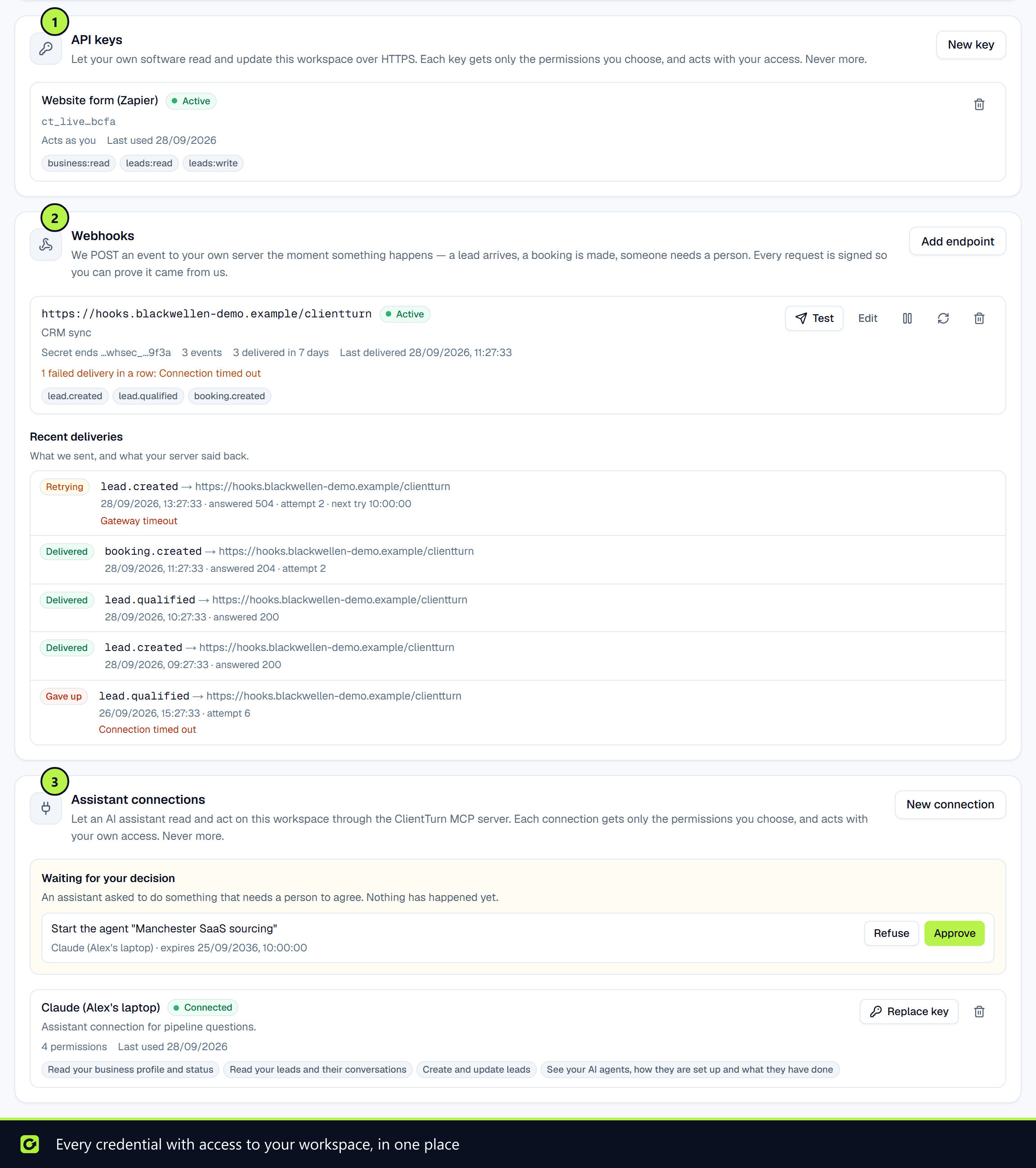
Settings → Developer gathers the three ways into your workspace from outside: API keys for your own code, endpoints that ClientTurn sends events to, and assistant connections. They sit together because they are one decision: what can reach your workspace, and where its data goes. Revoking a key in one place and leaving an assistant connected in another is how access gets forgotten.
Only owners and admins can open this section, even to look. The lists name every credential with access to the workspace and every address its data is sent to, which is administrative information in itself.
What is on the page
| Panel | What it is for | Main buttons |
|---|---|---|
| Overview | Your base URL, how to Check a key works, and how to Connect an AI assistant | |
| API keys | Keys your own systems use to call the ClientTurn API, each with its own permissions, environment (Live or Test) and expiry | New key, Create key, Revoke |
| Webhooks | Endpoints ClientTurn sends events to, with Recent deliveries | Add endpoint, rotate the signing secret, delete an endpoint |
| Assistant connections | AI assistants connected to your workspace, each limited to what you allow. A new connection issues its own API key, with the MCP server URL and a client configuration to copy | New connection, Replace key, Revoke |
Keys and secrets are shown once
A new API key, a new assistant connection key and a new signing secret are each shown once. Copy it, then choose I have copied it. ClientTurn stores only a fingerprint, so it cannot show the value again. If you lose it, issue a new one.
Where to read more
- API keys
- Webhooks
- Connect an AI assistant
- Connections settings, for lead sources, calendars and CRMs
Screenshots
Still stuck?
Customers can raise a ticket from the help button inside the app. Not a customer yet? Talk to us.